At TWBC, we use MS Teams for Member Briefings and for some of our Working Groups. The below guide walks you through how to accept an initial meeting invitation and explains all the functions of Teams that will need to be aware of.
Accepting a meeting invitation from your email
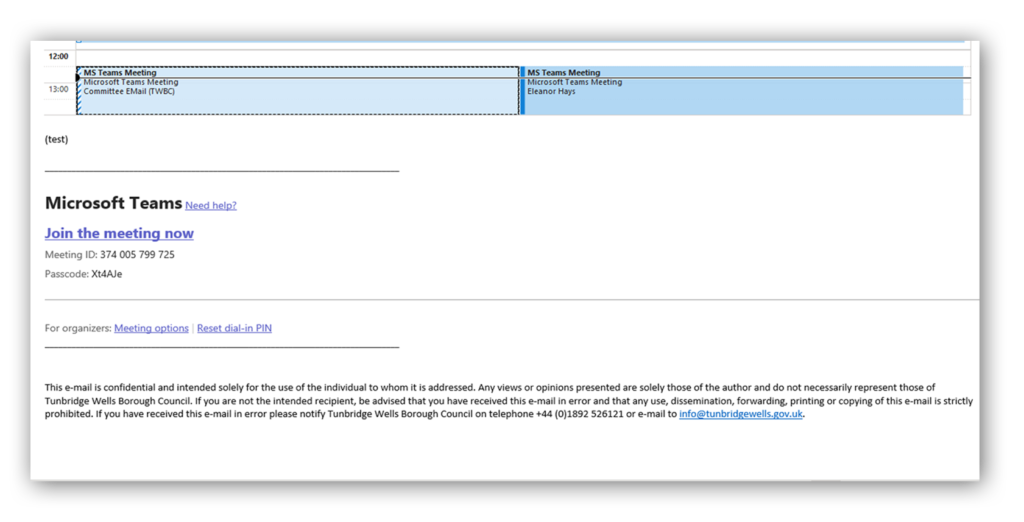
You will receive invitations to join an MS Teams meeting via your Outlook email. It will look like this:
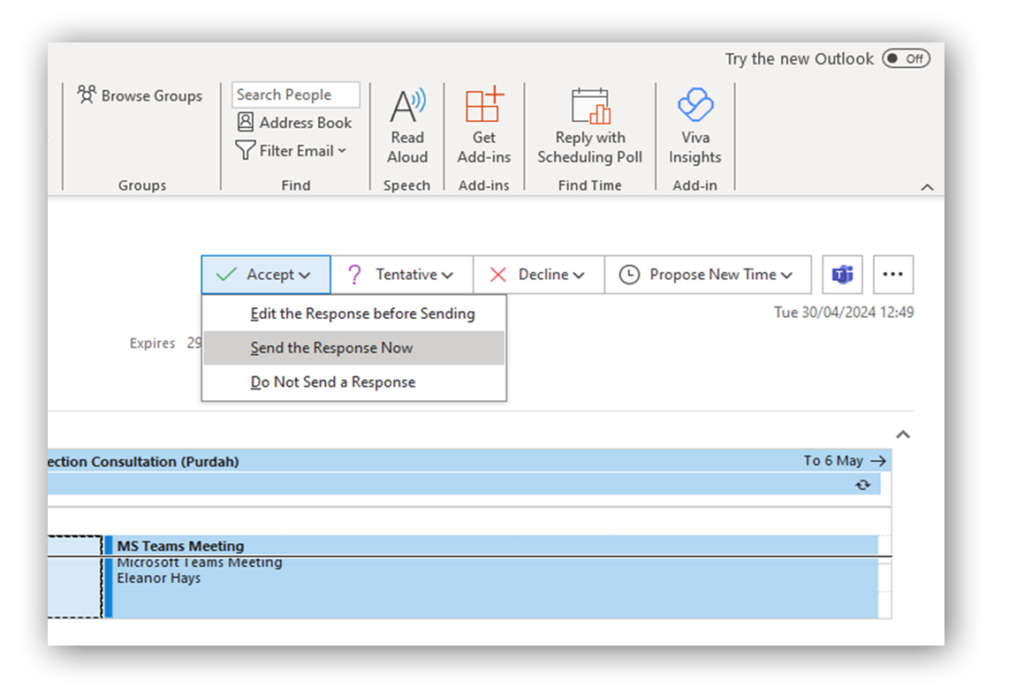
When you accept an invitation, please click under accept ‘Send the response now’. This ensures the acceptance comes through to our mailbox as well as your own and allows us to keep track of who to expect in the meeting.
PLEASE NOTE: If you cannot attend a meeting and need to decline, this does not count as formal Apologies for the meeting and these will still need to be given in advance and at the earliest opportunity.
Joining a meeting
When you receive your meeting invite via your email, all you need to do is click where it says ‘Join Microsoft Teams Meeting’, or ‘Click here to join the meeting’.
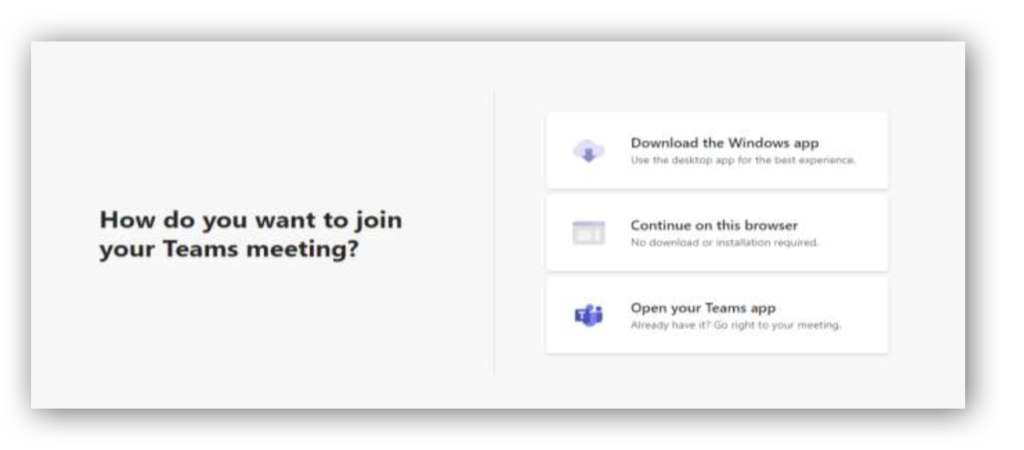
When you click the link, it will take you to this window on your default internet browser. Click the option in the centre indicated below: ‘Open your Teams App’
Next, you may be asked to allow the use of your computer’s microphone and/or webcam. Simply click ‘Allow’ if this comes up in order to give you the option of participating fully in the meeting.
Don’t worry, you’ll have complete control over your camera and mic, and nobody will be able to see/hear you on the call unless you choose!
Once you’ve done that, the following window will pop up that prompts you to type your name. This is the name that will be displayed for all in the call so is useful to use full first and last name.
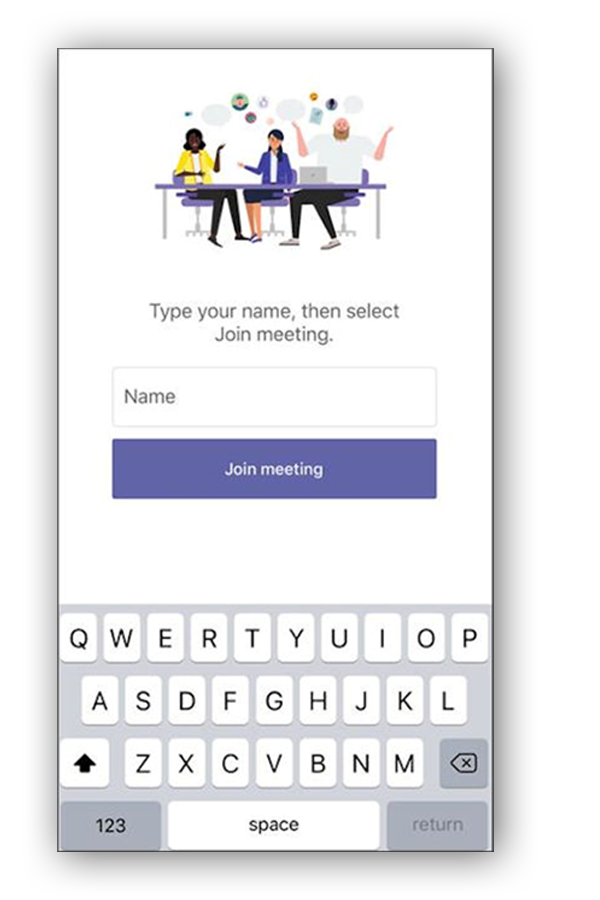
We recommend that you mute yourself before entering the call to minimise any background noise. You may also find that you need to turn your camera off if you don’t have strong internet signal. You might have to ‘wait in the lobby’ until someone admits you to the meeting, but this only takes a few moments.
You will then be shown the following screen where you can amend your settings prior to joining a meeting.
Settings of the meeting
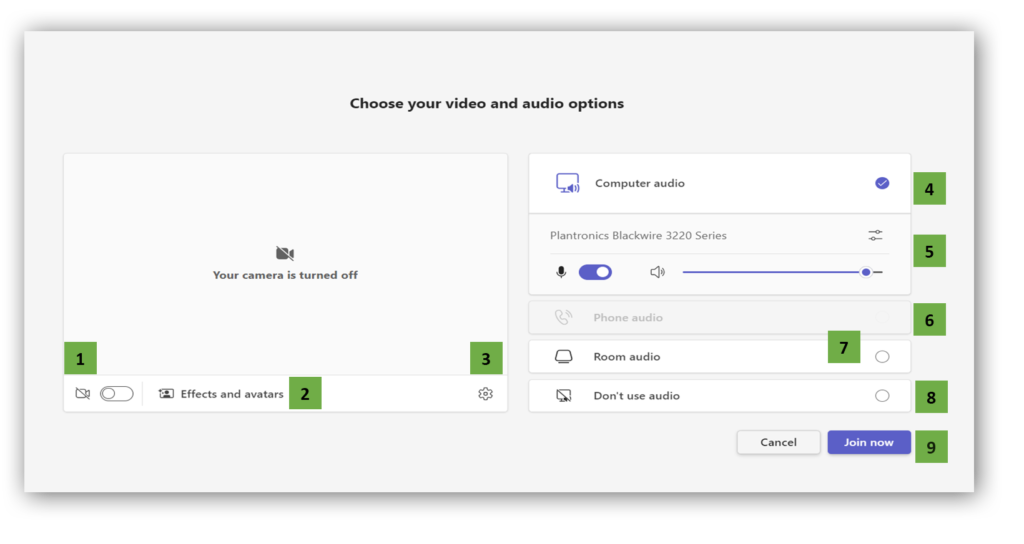
- 1
Camera. This it to turn your camera on/off. This will also enable background effects.
- 2
Background filters (blurring background/replacing with any other image)
- 3
Device settings. Audio and camera adjustment settings.
- 4
Computer audio. Select when you wish to use computer speaker and microphone.
- 5
Microphone mute. If 3 or more people have joined, you’ll be automatically muted.
- 6
Phone audio. Join using a mobile phone if dialling in manually.
- 7
Room audio. Join to a conference room.
- 8
Don’t use audio. Connect muted to avoid audio disruption.
- 9
Join now. Click here when you are ready to join the meeting.
Meeting functions
Once you’re in the meeting, you’ll have the following tools, either at the bottom or the top of your screen:
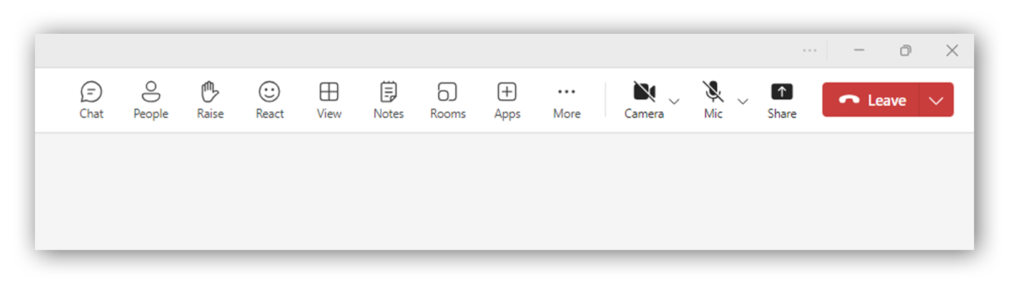
Going from left to right:
Chat
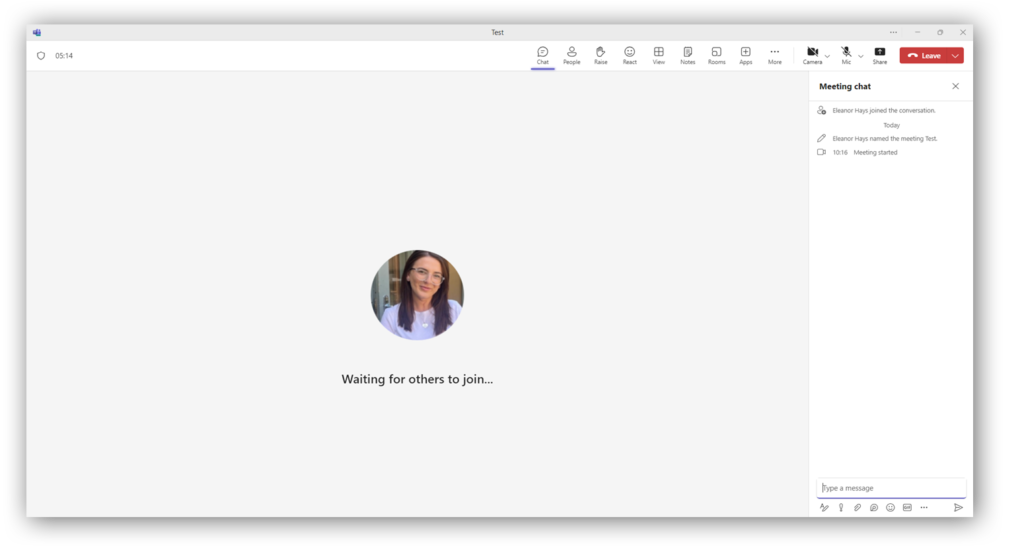
The little speech bubble icon opens the chat function to the right of the screen. This is a good place to leave comments or questions if you don’t want to raise your hand. The organiser may prompt you to ‘put it in the chat’, i.e. type a comment or some feedback.
Click on the chat function to start typing, then click the return key to submit. The chat function will appear on your screen as below:
People
The icon with people in shows you all the participants on the call.
Raise
Clicking the little hand ‘raises your hand’, this means you want to say something and are waiting to be prompted by the organiser to speak. When you raise your hand, the organiser will receive a notification that you are waiting. It’s much better to use this function than just speaking, as you could end up speaking over someone and this can sound disjointed for everyone else in the meeting!
When you click ‘raise your hand’, the hand icon will turn yellow, and you’ll be able to see a little hand next to your participant name. Clicking the hand lowers it again, you may be prompted to do this by the organiser after you have spoken. See below:
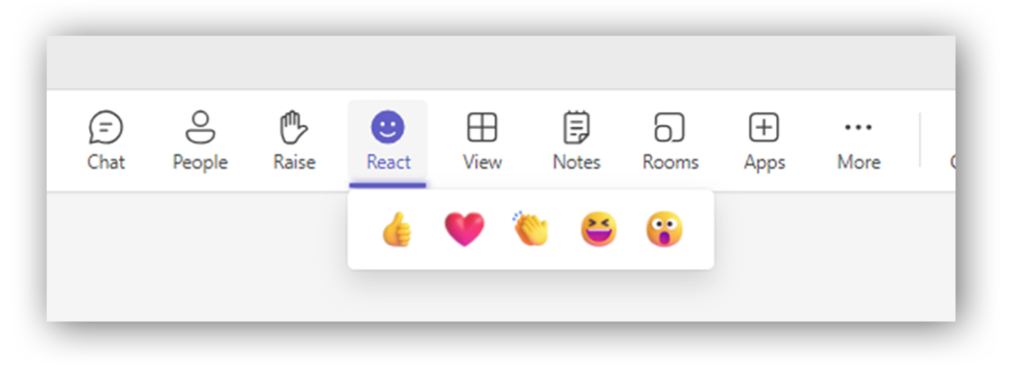
React
Similarly, to raising your hand to speak, you can also ‘react’ to a presentation, question or comment with the below emojis while someone is speaking.
Notes, Rooms and Apps
These features you shouldn’t need to use. These include creating meeting notes to assist an agenda, break out rooms for group discussions and further apps that can be used alongside Teams.
More
The 3 dots give you more options, such as sound and visual settings (you shouldn’t need to use these).
Camera
Click the little camera icon to turn off/turn on your visual.
Microphone
Click the little microphone to mute/unmute yourself.
Share
The box with the arrow gives you the ability to share your screen (which you shouldn’t need to use!) During a meeting, it is likely the organiser will want to deliver a presentation and share their screen with all participants. You don’t need to do anything in order to see this, the screen they are viewing will appear in your main Teams window.
You will still have the functionality to raise your hand, and to type comments in the chat function.
Red phone/Leave
Clicking the red phone is ‘hanging up’ and removes you from the meeting. When the meeting is over, or you’re ready to leave, simply click the red ‘hang up’ button. Don’t worry if you click this by accident! You’re always given the option to re-join the meeting by clicking the same link you initially joined with from your email.
If you are having any connectivity or software issues with MS Teams, please contact the IT department who will be able to assist you on ServiceDesk@MidKent.gov.uk