Applying for your Permit
- On the Apply for a season ticket page of the TWBC website, click on the green ‘Start now’ button.
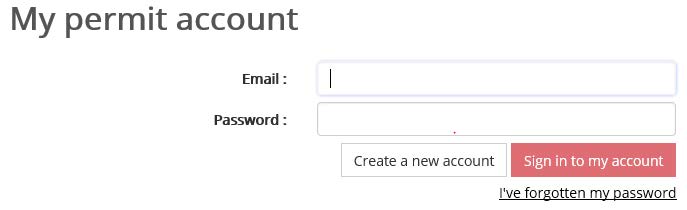
- Click on ‘Create a new account’:
- Choose ‘Staff – Tunbridge Wells’,
Enter your TWBC email address,
Choose and confirm a password: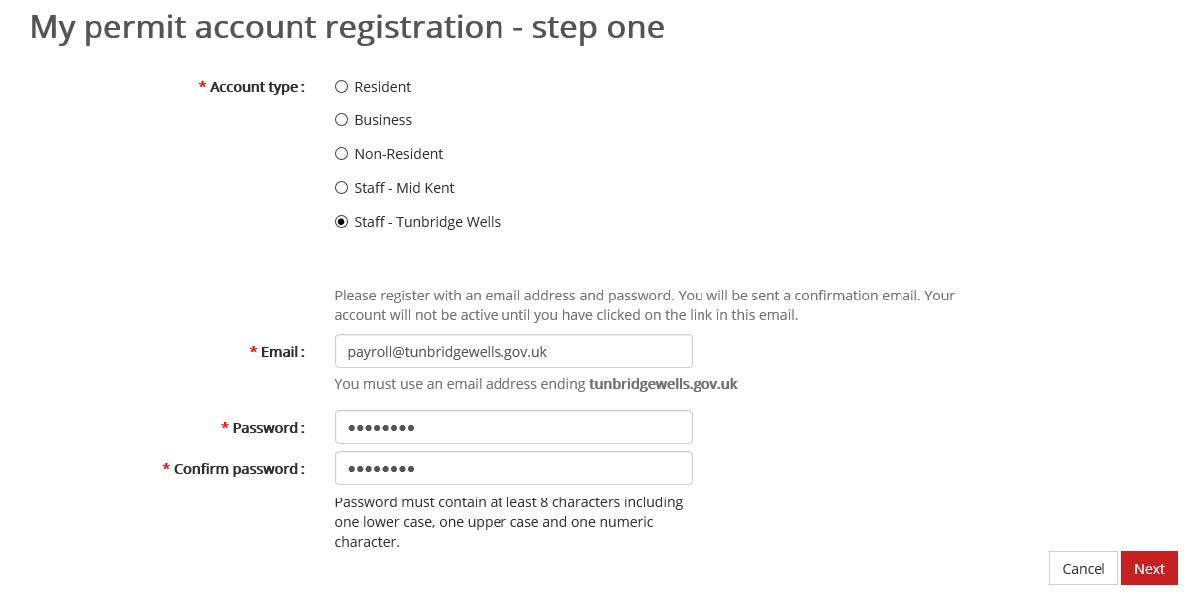
- Enter personal details
(if you have not yet been issued an employee reference enter 11111)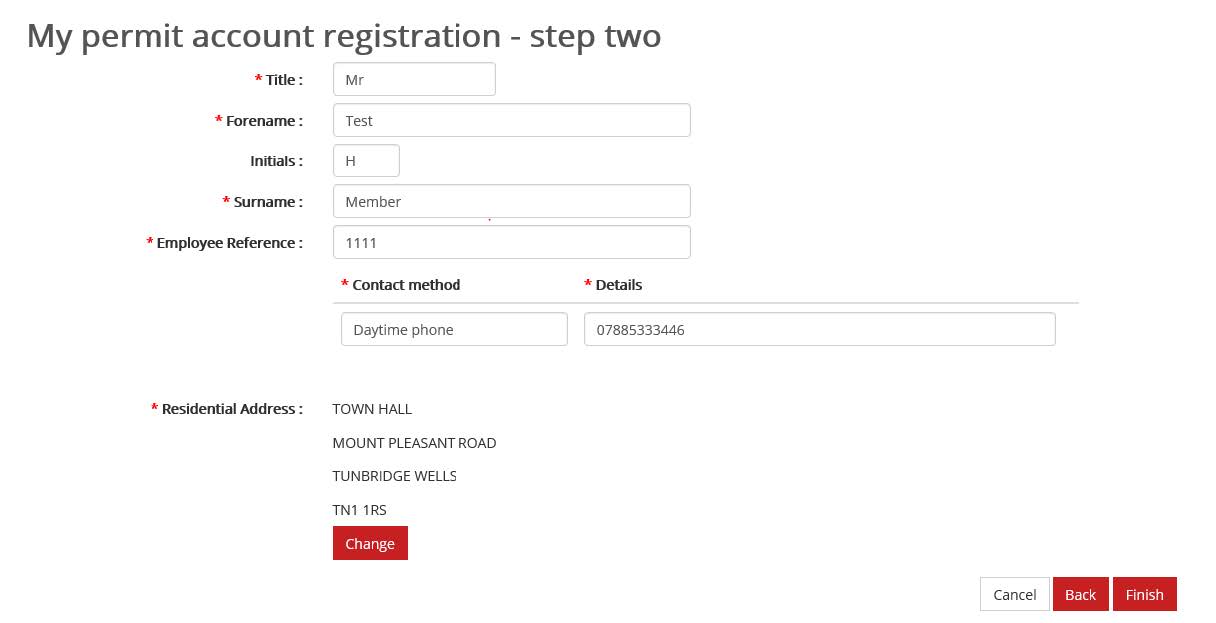
- Finish

- You will be sent an email (to your TWBC account) to activate your Parking Permit Account.
When you receive the email, click on the blue link confirm your account registration: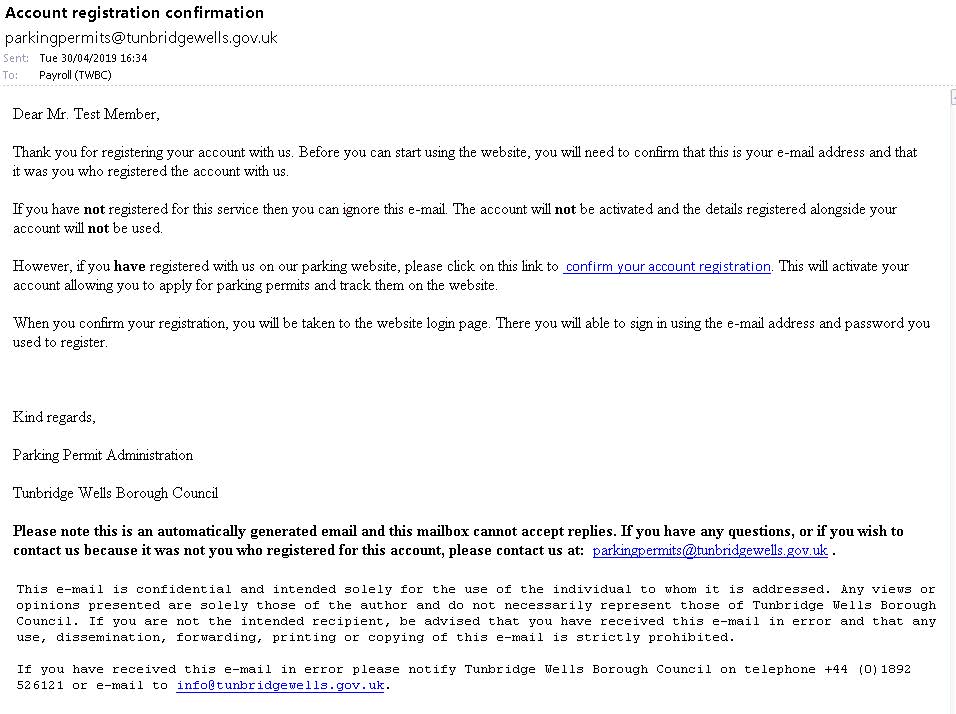
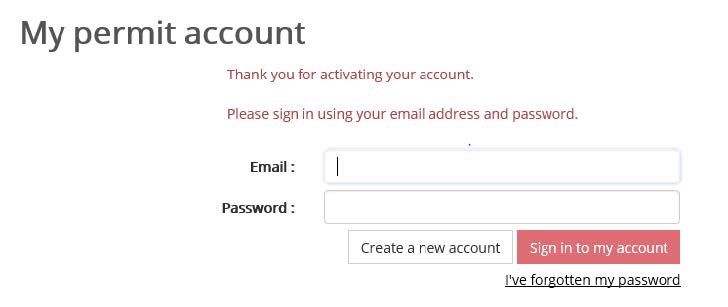
- You are then taken to your permit account and can log in using your TWBC email address and chosen password
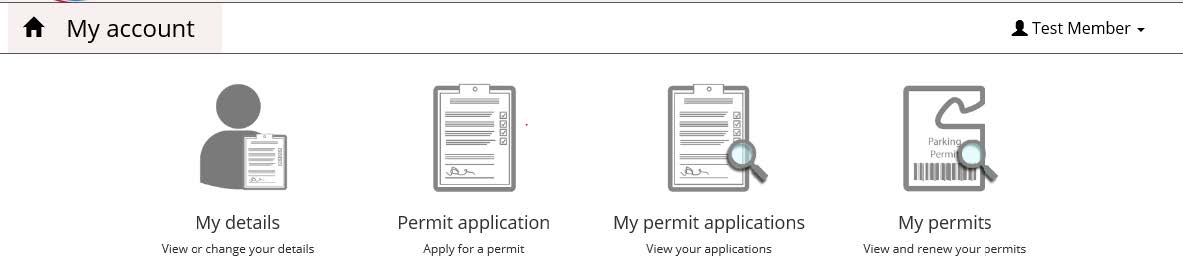
- Choose ‘Permit application’:
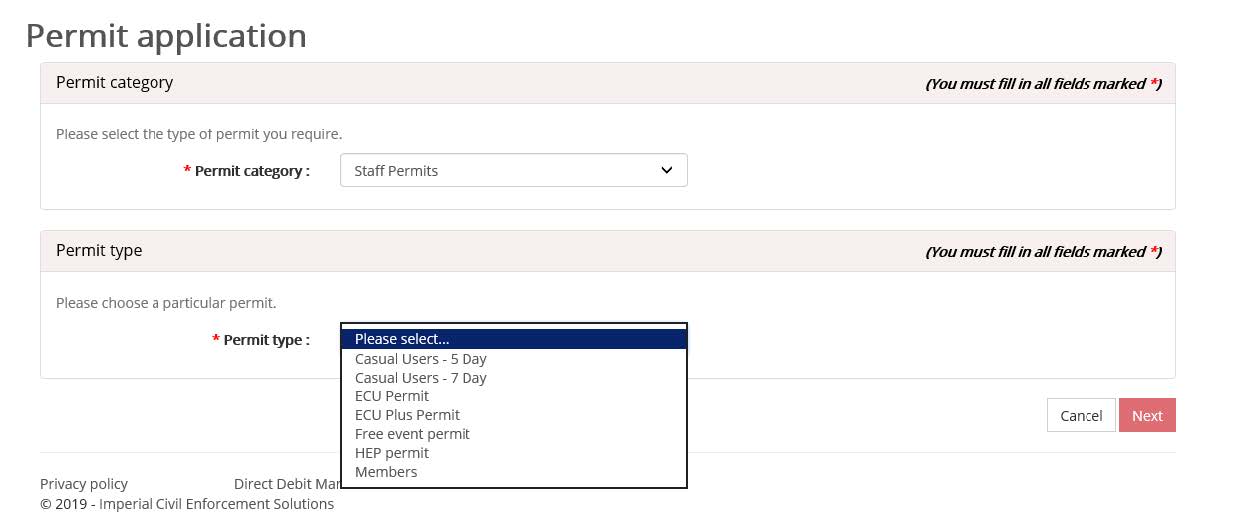
- Choose ‘Permit type: Members’:
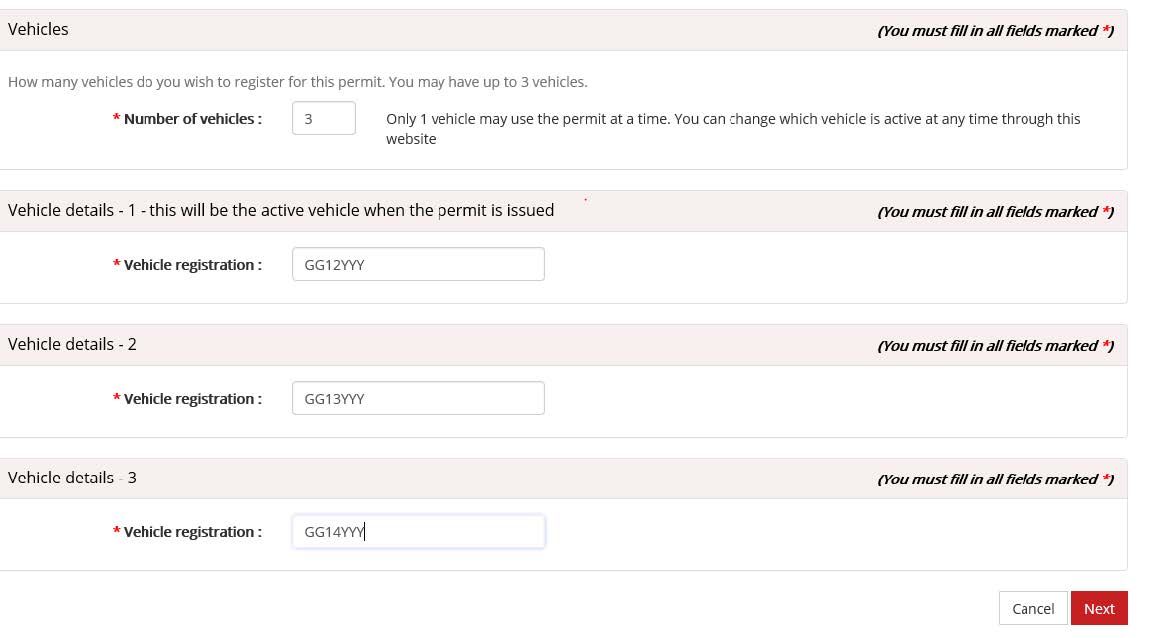
Members can add up to 3 VRN’s onto their Parking Permit (only 1 vehicle can be parked at any time):
- Review the details and proceed if they are correct
The permit is immediately active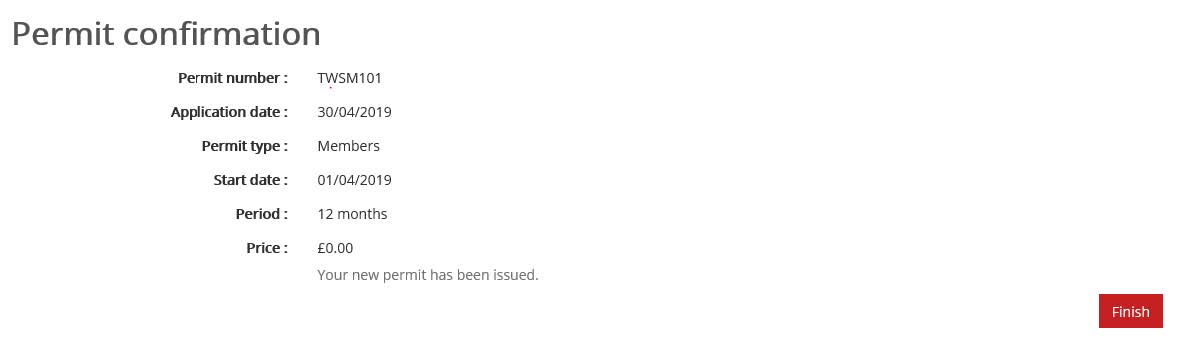
- Click on ‘My account’:

- Go to ‘My permits’:
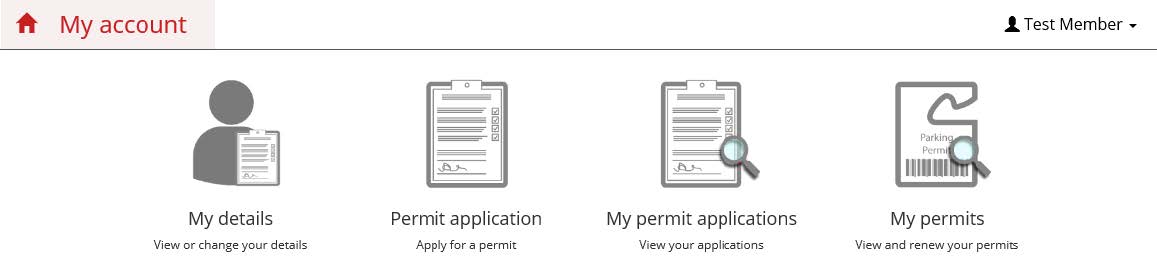
- Click on the red magnifying glass:

- Click on the ‘Vehicle’s tab:
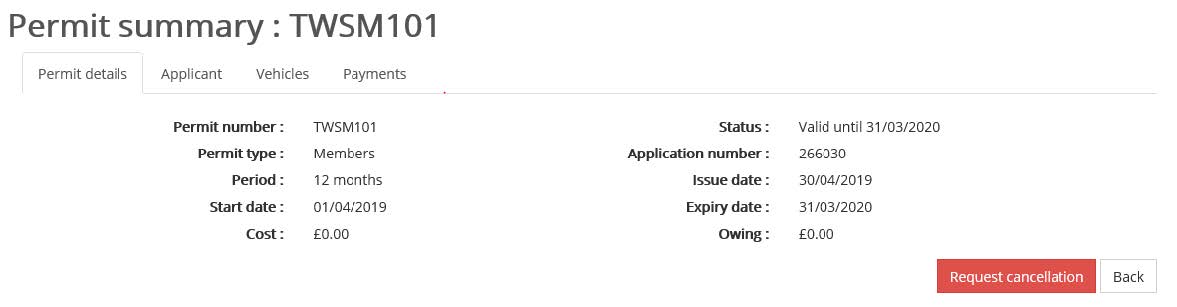
- The green tick shows the VRN that the vehicle is active against currently:
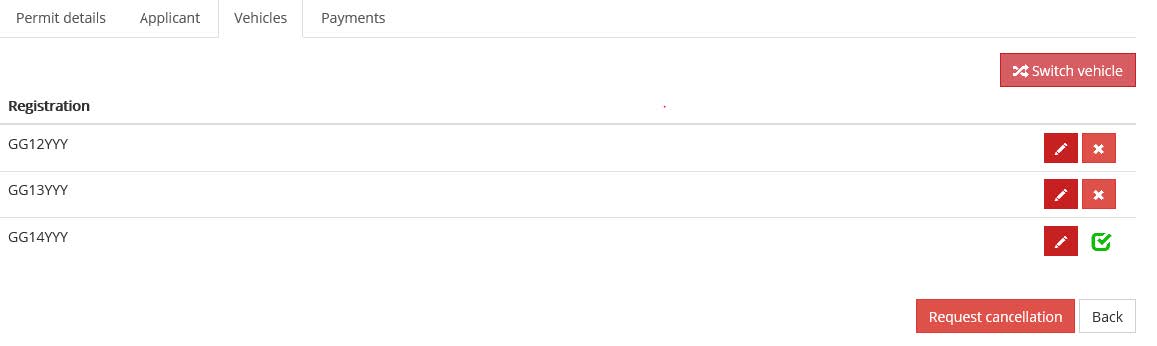
- Click on ‘Switch vehicle’.
- Chose the VRN that you would like to park then ‘Save’:
Renewing Your Permit
You will receive an email prior to the expiry date reminding you to apply to renew your permit.
Displaying a Parking Permit
The Parking Permit system is virtual and as such you are not required to display a paper permit on your vehicle windscreen. However please ensure that if you have multiple vehicles you have the correct Vehicle active at the time of parking.
Terms and Conditions
By applying for and using a Members Parking Permit you are agreeing to the below terms and conditions of use:
- Name of Permit: Members Parking Permit
- Cost: Free
- Car Parks: This permit enables the applicant to park in any pay and display car parks within the borough, ‘H’ bays in Civic Way and Town Hall Yard car park (ground and first floor only), without payment whilst on Council or Constituency business.Parking is also available in Town Hall Yard on the ground or first floor. If no spaces are available in Town Hall Yard, parking is available in Crescent Road Car Park from space 3.1 and above.
- Type: This is a seven day permit.
- Authorisation: Any application for a Members Permit will be verified by payroll.
- Cancellation: Permits will be cancelled automatically should your term of office with Tunbridge Wells Borough Council end.
- Vehicles: Using self service on PermitSmarti you can attach up to 3 vehicles against your permit and then swap the permit to the appropriate vehicle as required.You are responsible for providing Payroll with a copy of your driving licence, insurance certificate and MOT (if applicable) should you wish to put in any mileage claims for payment.
- Renewal: Each permit lasts for a period of 1 year unless cancelled. You are responsible for renewing your permit after this period of time. Failure to hold a valid virtual permit on the correct vehicle may result in a Fixed Penalty Notice being issued.
Declaration
In applying for the permit I declare that I have read and understood the terms and conditions of the permit as above.