Introduction
What is it and how does it work?
Multi-factor authentication is a process that Microsoft have enrolled to enable its users for authentication of their Microsoft 365 account. The person logging in is prompted at the sign-in screen for extra identification, such as a code on their mobile phone or tablet.
If only a single password is used to authenticate the log-in, it leaves the account at risk of an attack. If the password is weak, is it genuinely the person signing into the account, or is it an attacker? With a second form of authentication, it makes it very difficult for impostors to breach the system and boosts the security of the account.
Multi-Factor Authentication works by prompting the user for two authentication methods; a password, as well as an ‘Approve’ button sent to the user through a different device via the Microsoft Authenticator app or verification phone call.
Setting up the ‘Microsoft Authenticator’ app
Skip to the section at the end for the Authenticator phone call method instead.
- Visit your devices app store.
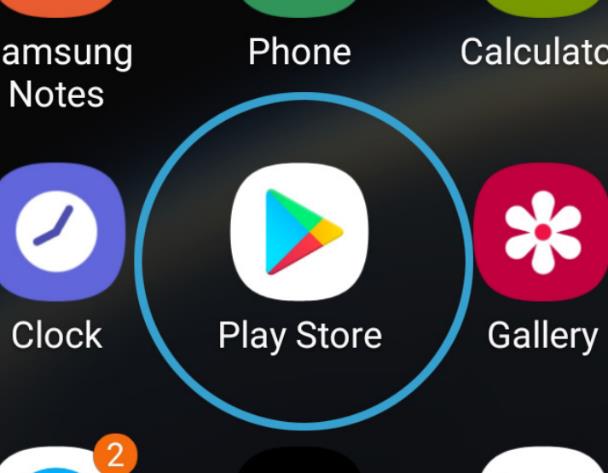
For Android devices, this will be named the ‘Play Store’:
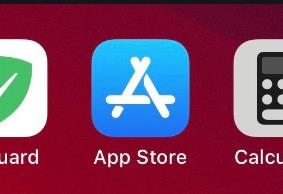
For Apple devices, this will be named the ‘App Store’:
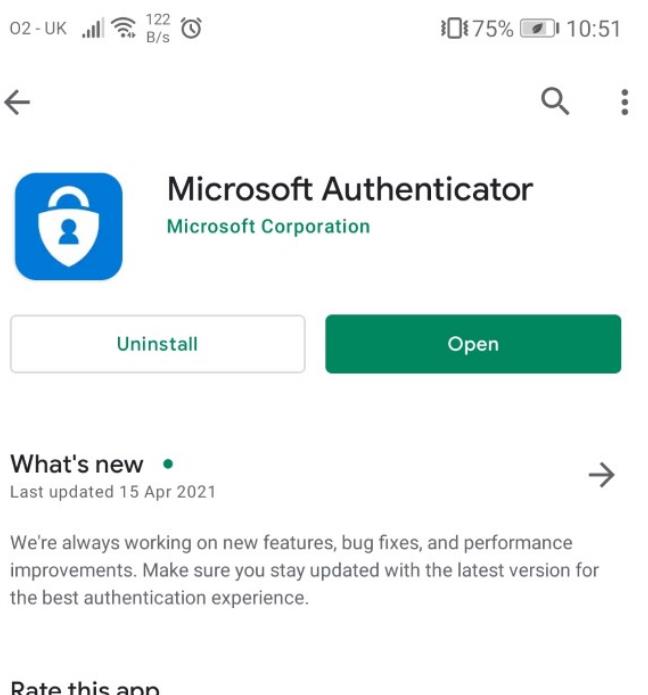
- Search for ‘Microsoft Authenticator’ and install. Once installed, select ‘Open’.
- Now you have the app open and ready, put the device to one side for a moment whilst you open this link from your computer:https://aka.ms/MFASetup
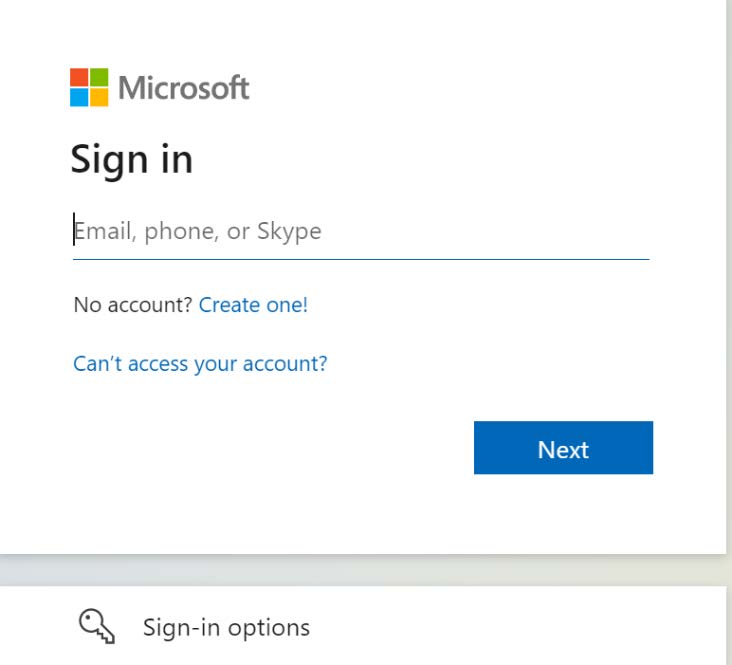
- Depending on the computer or laptop you are using (work or personal) you may be prompted to sign in. If so, follow the steps below. If the screen doesn’t prompt to sign in, skip to step 5.Sign in with your work email address and click ‘Next’.
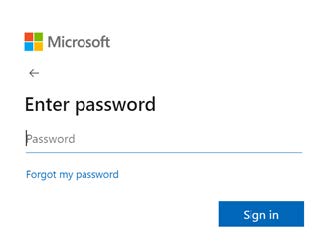
Enter your work account network password and click ‘Sign in’.
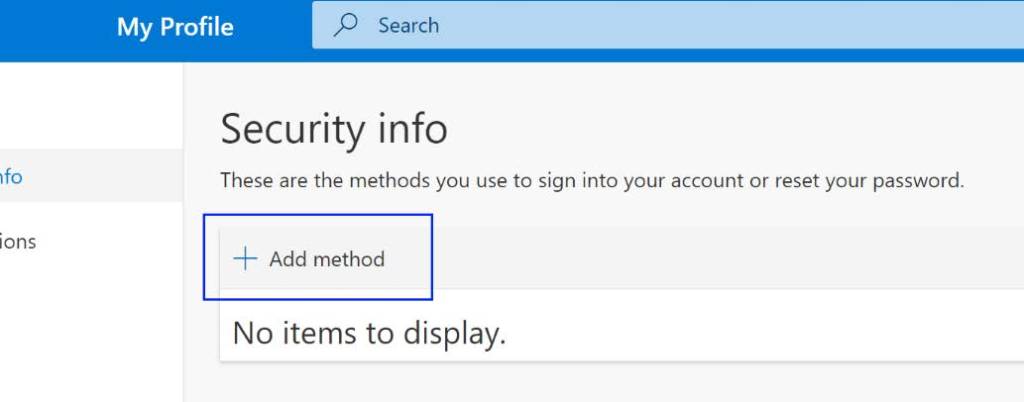
- Click ‘Add method’.
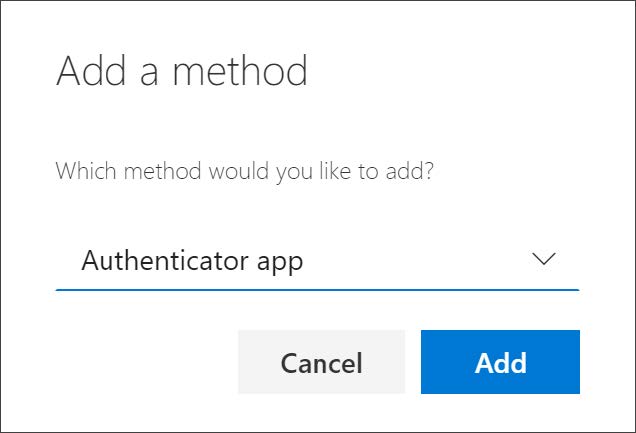
Select ‘Authenticator app’ and click ‘Add’.
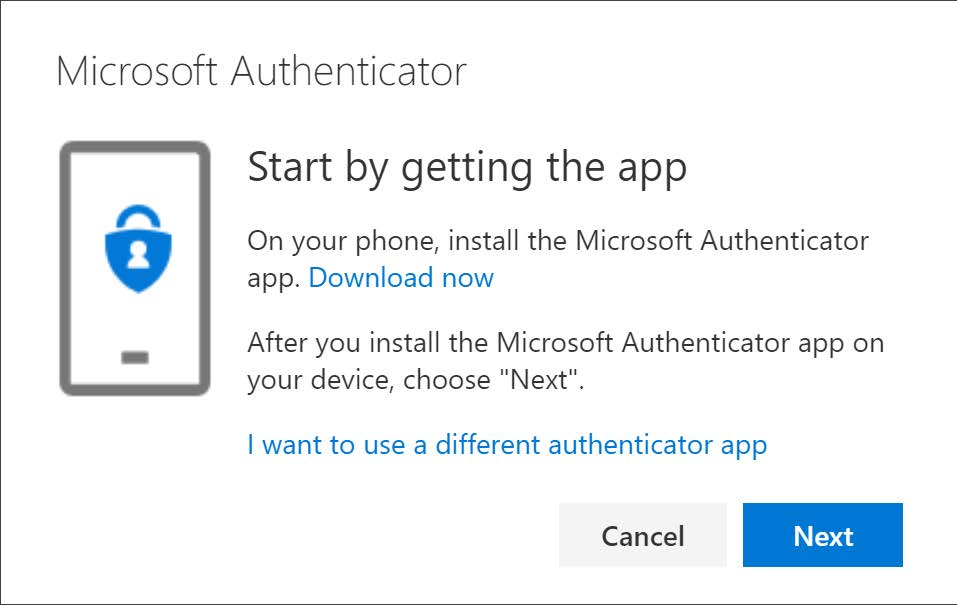
At this point, we have already installed the ‘Authenticator’ app in the previous steps so there is no need to install it again. Click ‘Next’.
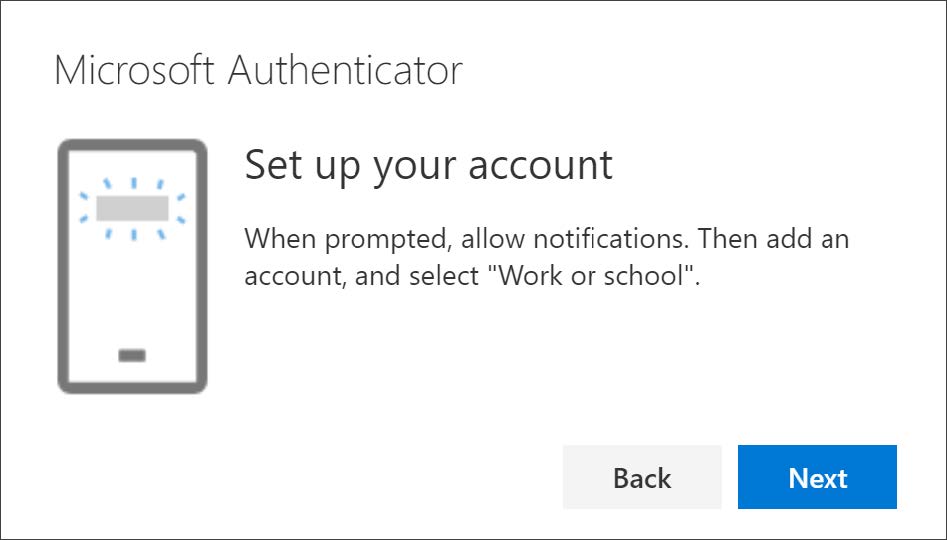
Remain on this ‘Set up your account’ screen while you open the ‘Authenticator’ app on your mobile or tablet.
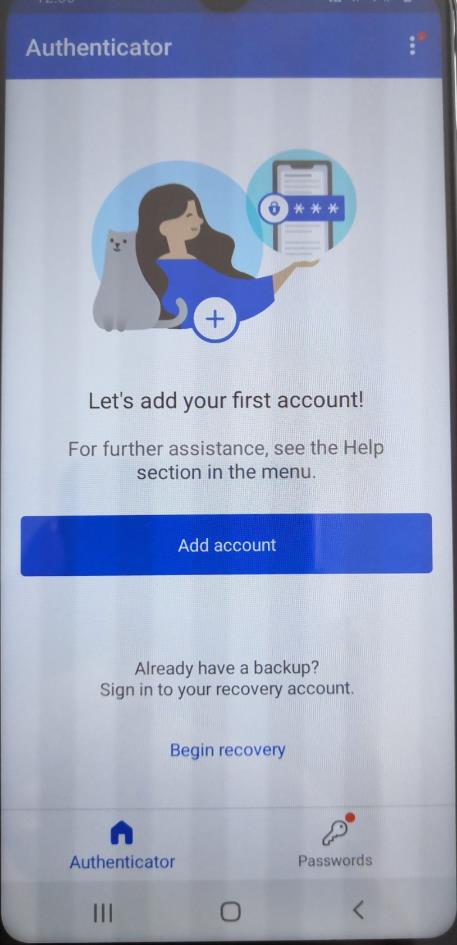
- In the Authenticator app, select ‘Add account’.
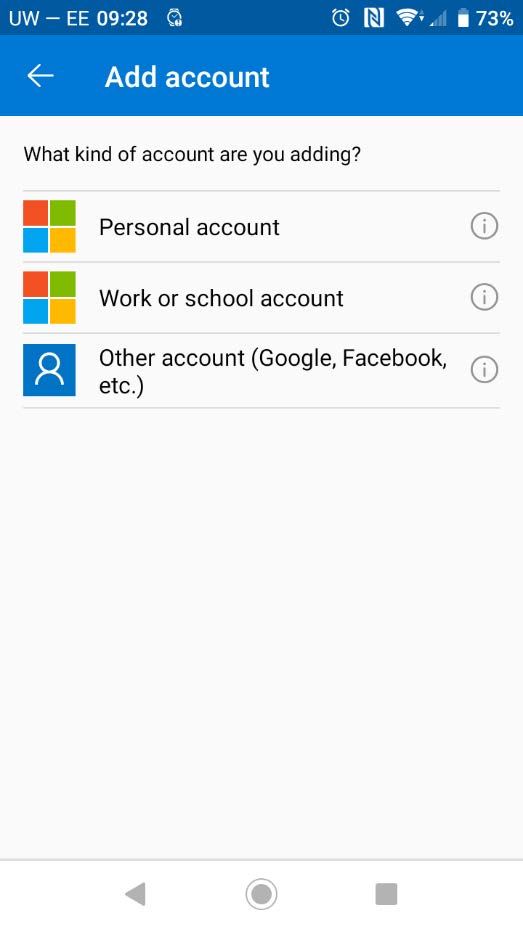
Select ‘Work or school account’.
Select ‘Scan a QR code’.
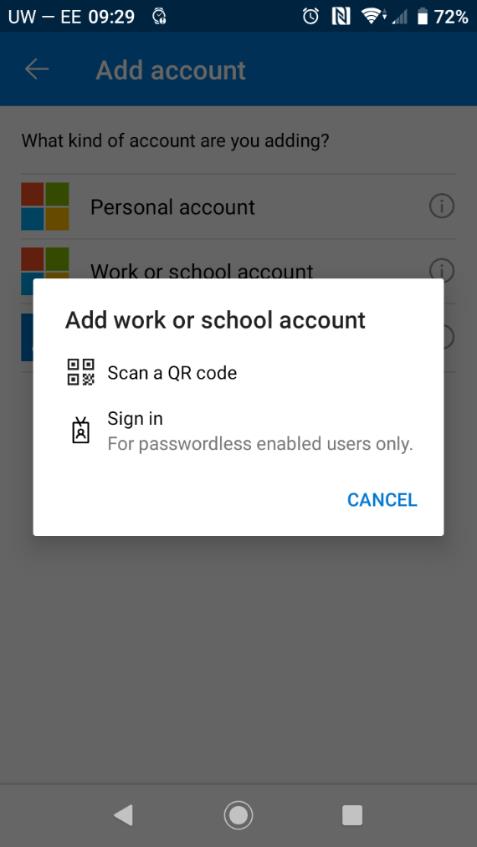
- On the computer screen, click ‘Next’.
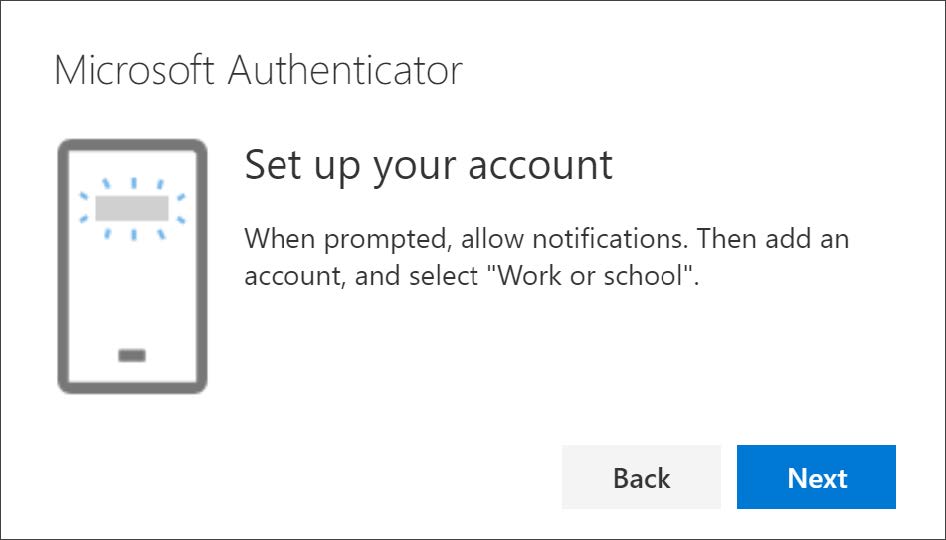
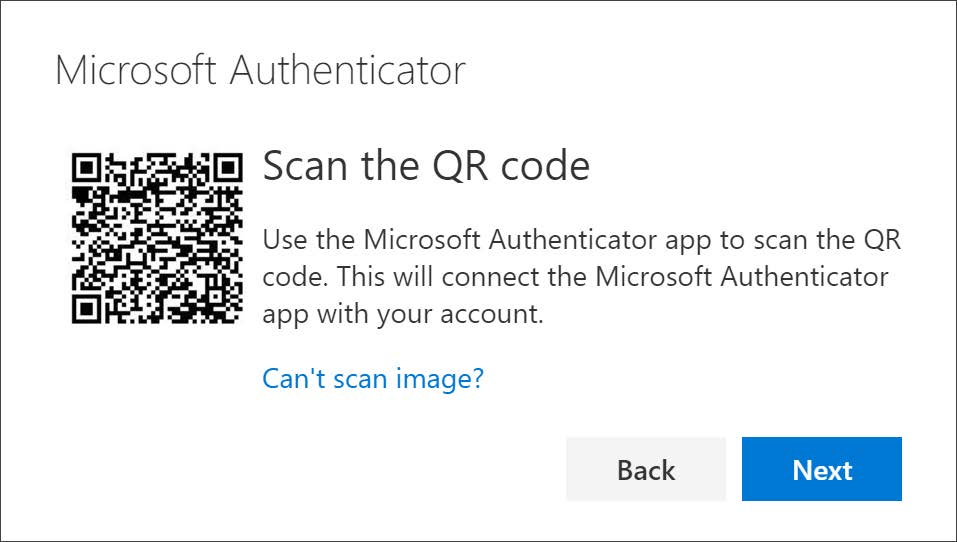
At this stage, you are going to use the camera on your mobile phone or tablet in the authenticator app, to hover over the square QR code on the computer screen. Once it is lined up properly, it will snap in and change the app screen. The authenticator app should successfully add your work account without requiring any additional information from you. However, if the QR code reader can’t read the code, you can select the ‘Can’t scan the QR code’ link and manually enter the code and URL into the Microsoft Authenticator app.
Select Next on the ‘Scan the QR code’ page on your computer.
Once this screen appears on your computer, a notification is then sent to the Microsoft Authenticator app on your mobile or tablet device, to test your account.
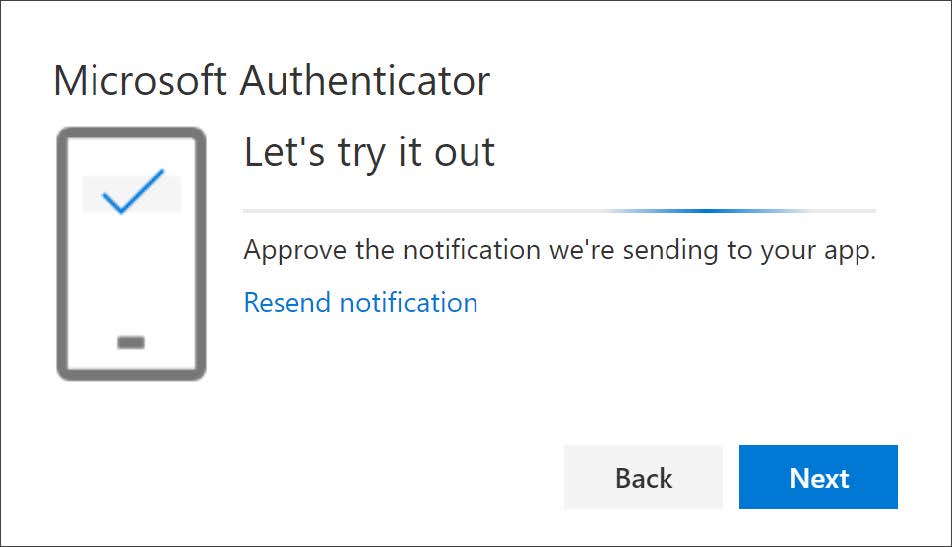
Approve the notification in the Microsoft Authenticator app, and then select ‘Next’. Once approved, your computer screen will change to acknowledge this. Click ‘Next’.
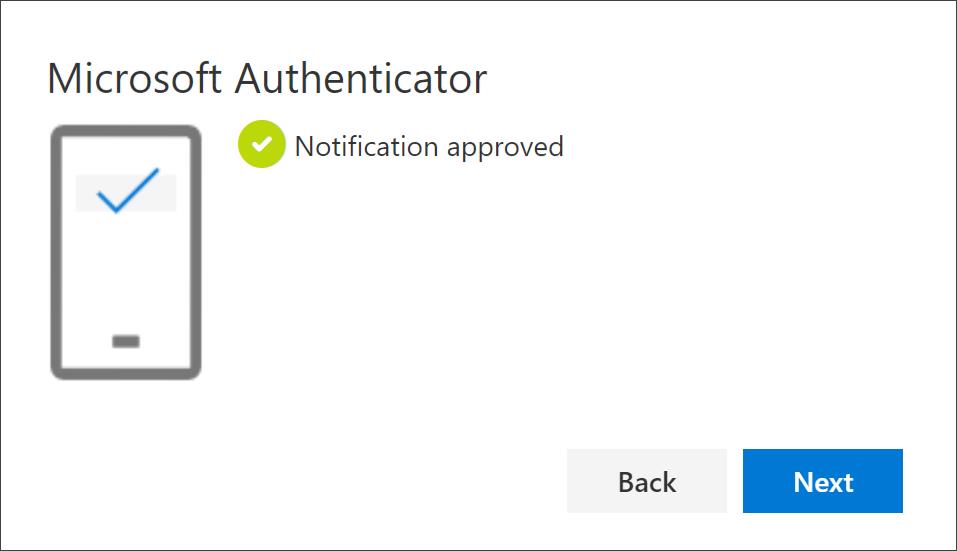
Your security info is now updated to use the Microsoft Authenticator app by default to verify your identity when using two-step verification or for a password reset.
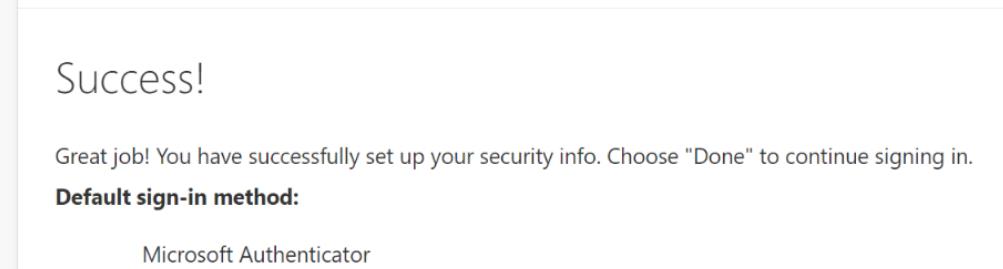
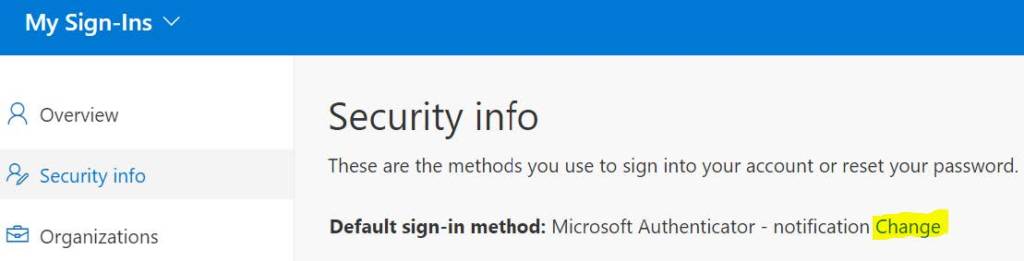
- Back to the original screen on your computer where you selected ‘Add method’ (within Security info), ensure the default sign-in method is set to ‘Microsoft Authenticator – notification’. If not, click ‘Change’ as shown below.
Setting up Microsoft Authenticator via a verification phone call
- On your computer, visit: https://aka.ms/MFASetup
- Enter your work email address and account password.
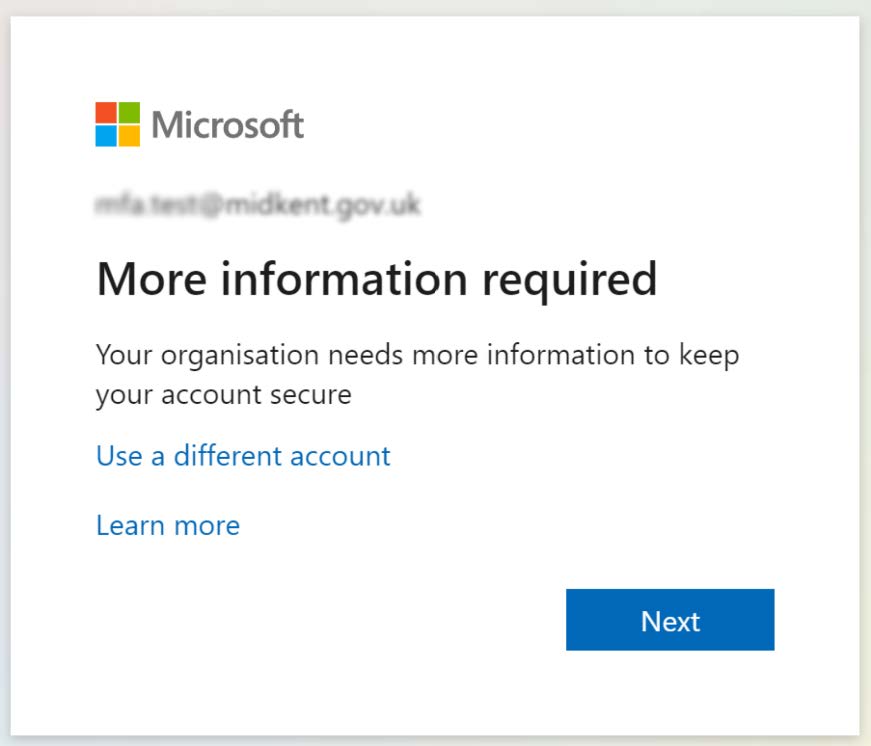
- A message will prompt for ‘more information required’. Click Next.
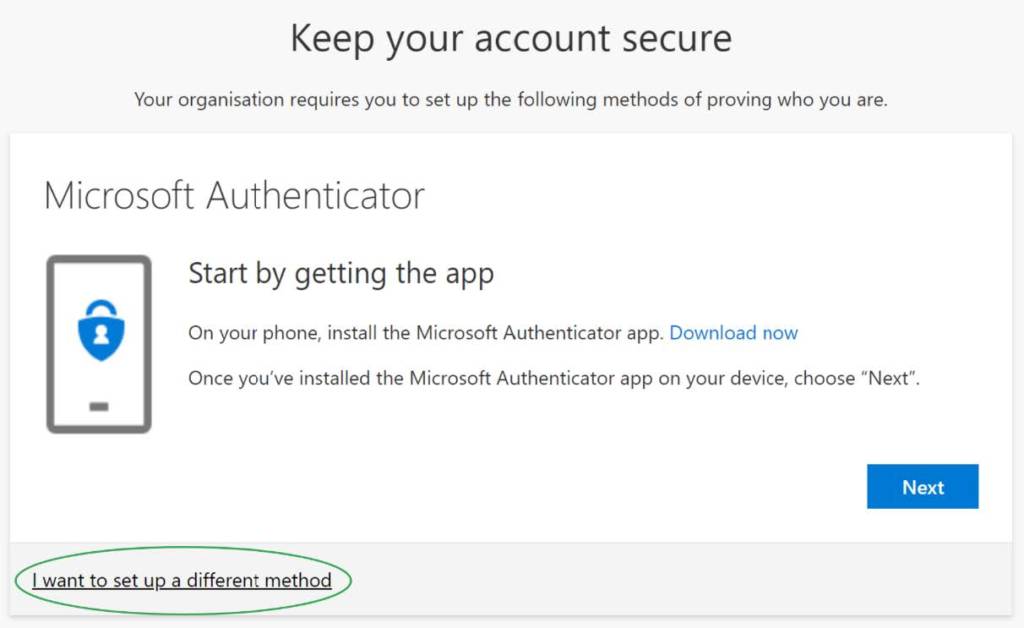
- Click ‘I want to set up a different method’.
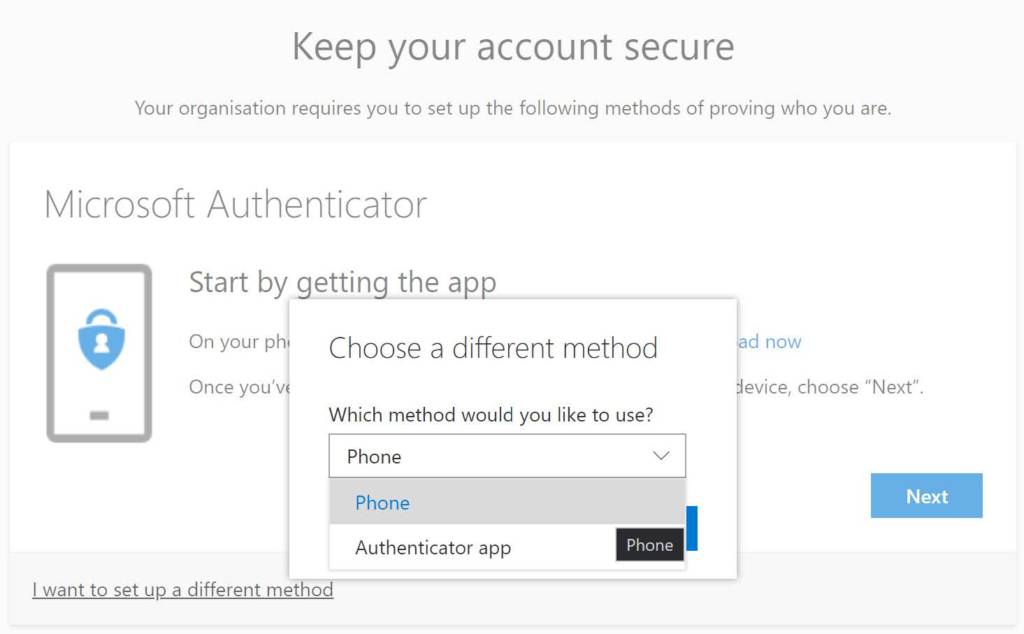
- Choose the ‘Phone’ option in the drop-down menu and click ‘Next’.
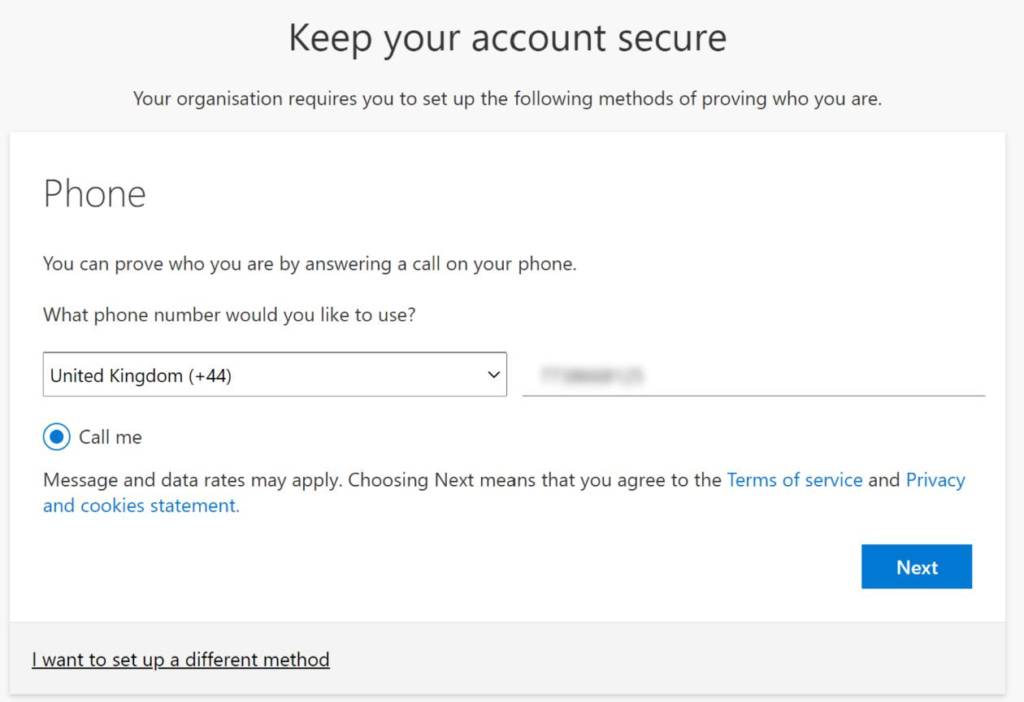
- Change the drop-down menu to United Kingdom and enter your phone number. Click ‘Next’.
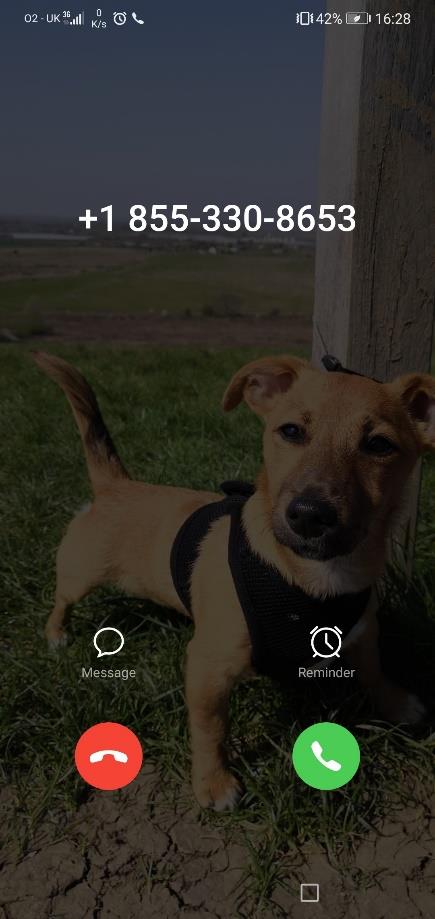
- Microsoft will now call the number you entered. Answer the call and then when prompted, press the hash key (#). The voice will then say that the verification has been successful.
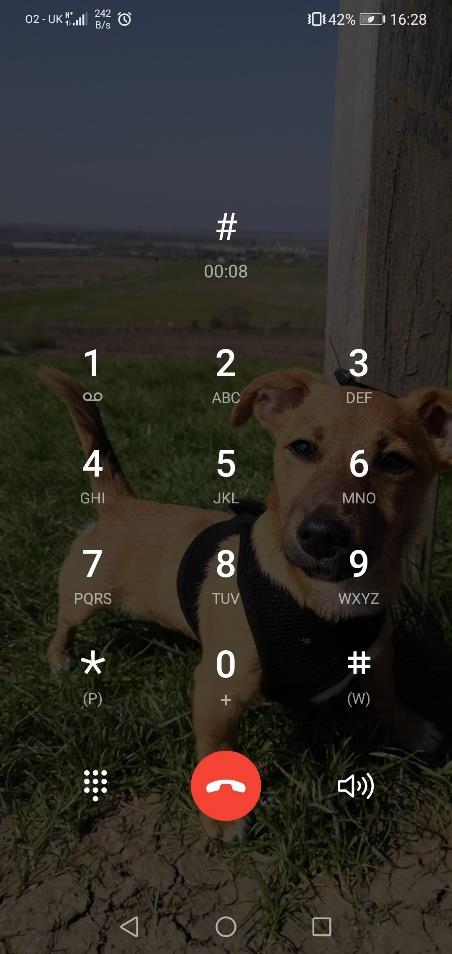
- Once the hash key has been entered on the phone, the computer screen will automatically change to the message below. Click Next.
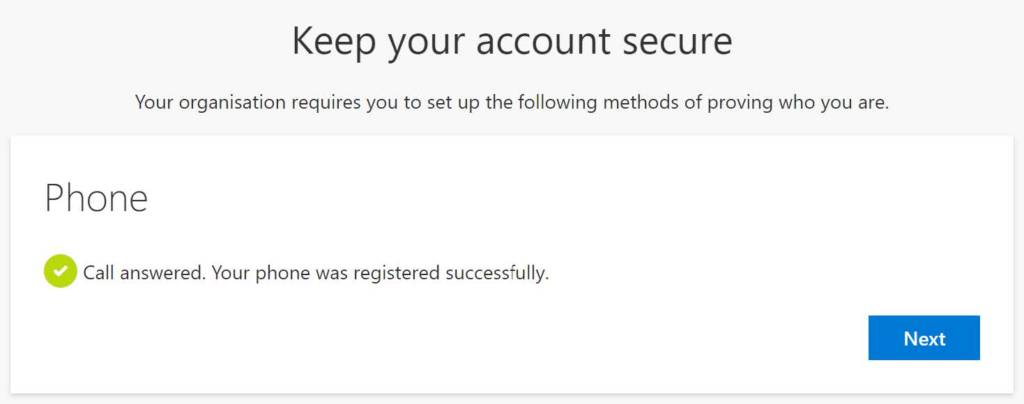
- Multi factor authentication has now been configured for your Microsoft account. All future log ins will prompt for verification via the phone call method.