Introduction
To be able to access work apps using a personally owned device we have introduced a work profile to keep personal and work apps (and their data) separate. This work profile is partitioned away from the existing personal environment within the App Drawer so that personal storage stays private and unaffected. MKS ICT will only be able to manage the work-related email, apps, settings, and data on the device; anything on the existing personal environment will stay private and accessible only to the device owner. MKS ICT cannot reset or wipe the device.
Identify work apps
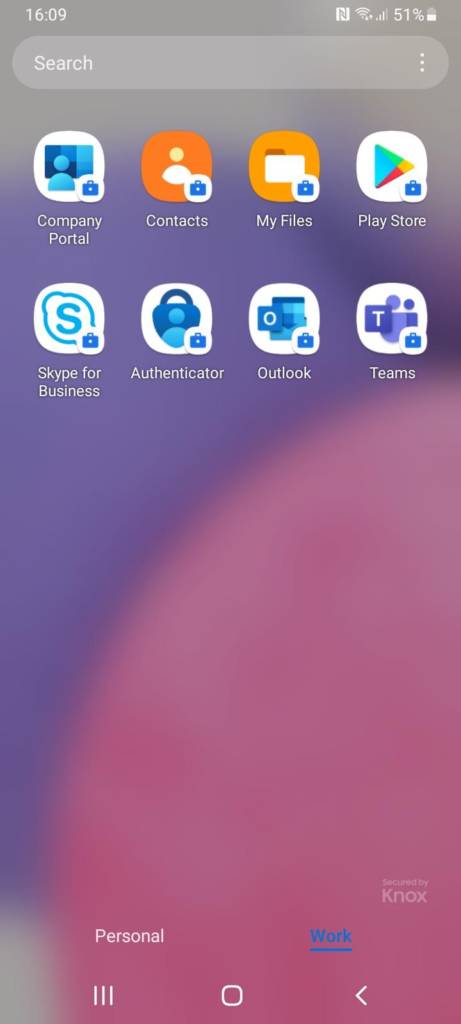
Work apps that are installed through the work profile will be marked with a briefcase icon. For example, you may see duplicate apps on your device once the work profile has been loaded onto the device such as Outlook. Use the briefcase version for work emails and the other one for personal emails.
Work app (briefcase)

Personal app (no briefcase)

App drawer
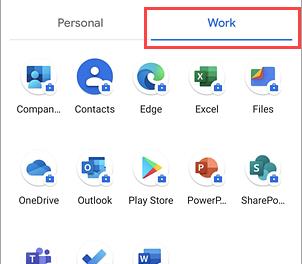
When accessing the devices full app list (usually by swiping up on the home screen) the work profile will display two separate tabs to indicate that there are two areas that separate the personal and work apps; this is the app drawer.
Setting up a work profile on your Android device
Please note, the instructions below were created using a Samsung android mobile. Other android devices may differ slightly as you work your way through the guide. Should you require further assistance, please call the Service Desk on 01622 602602 (open 8am-5pm Monday-Friday).
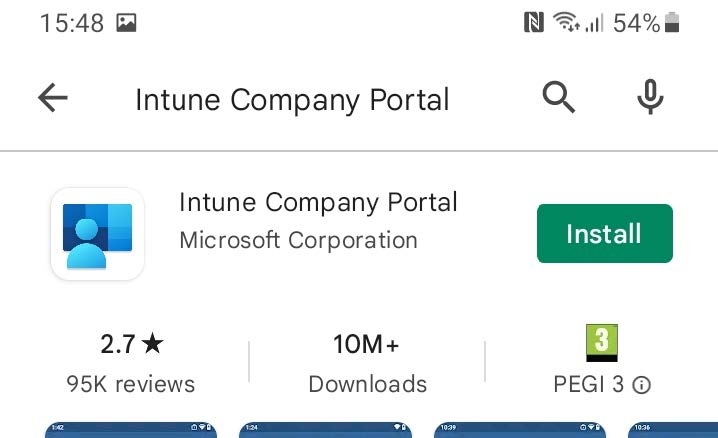
- Open the ‘Play Store’ app.
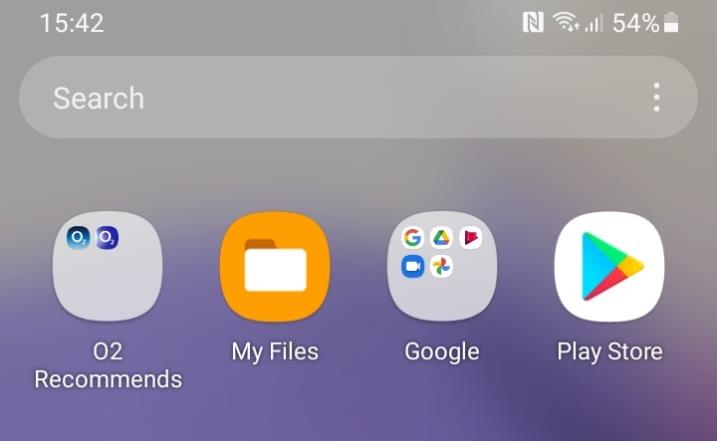
- Search for and install the app called ‘Intune Company Portal’.
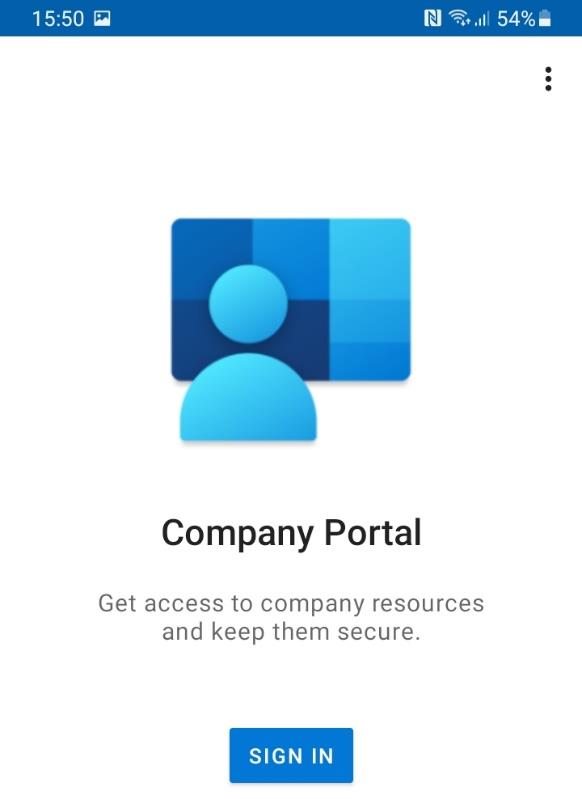
- Open the newly installed Company Portal app and tap ‘SIGN IN’.
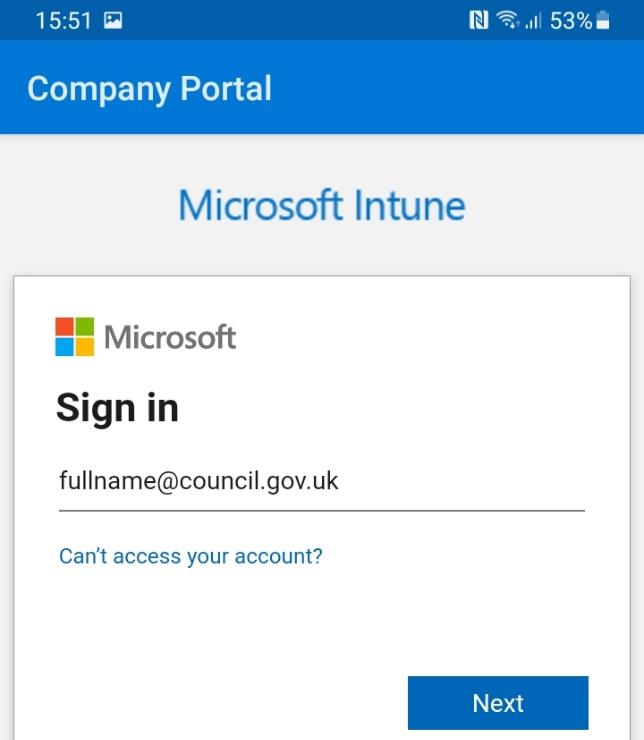
- Enter your council email address and tap ‘Next’. Then enter your account password. Microsoft’s ‘Multifactor Authentication’ will prompt soon after. If you haven’t already set this up, please visit the guide: Multi-Factor Authentication (Microsoft Authenticator for Office 365)
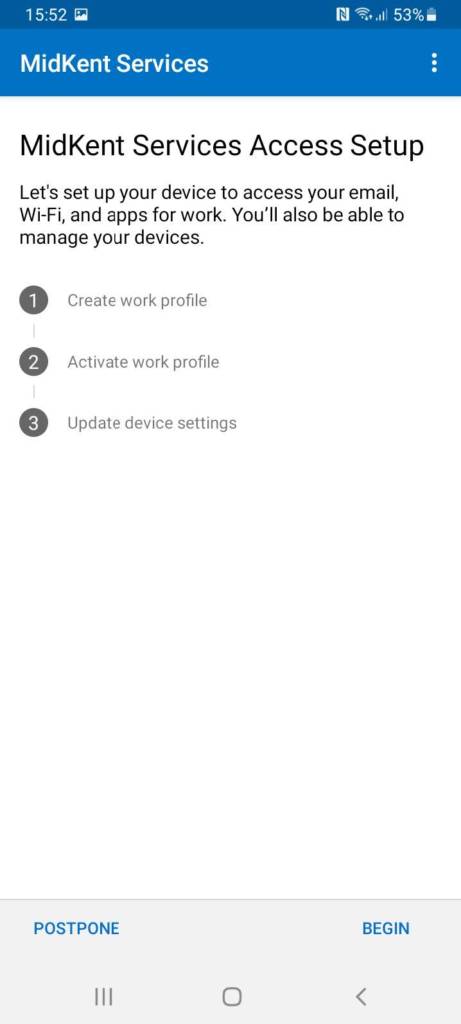
- ‘MidKent Services’ indicates that it has found your council account. Tap ‘BEGIN’ in the bottom right corner to start the configuration.
- The MidKent Services privacy policy will now display. Click ‘CONTINUE’.
- Tap ‘Accept & continue’ on the bottom right of the screen.
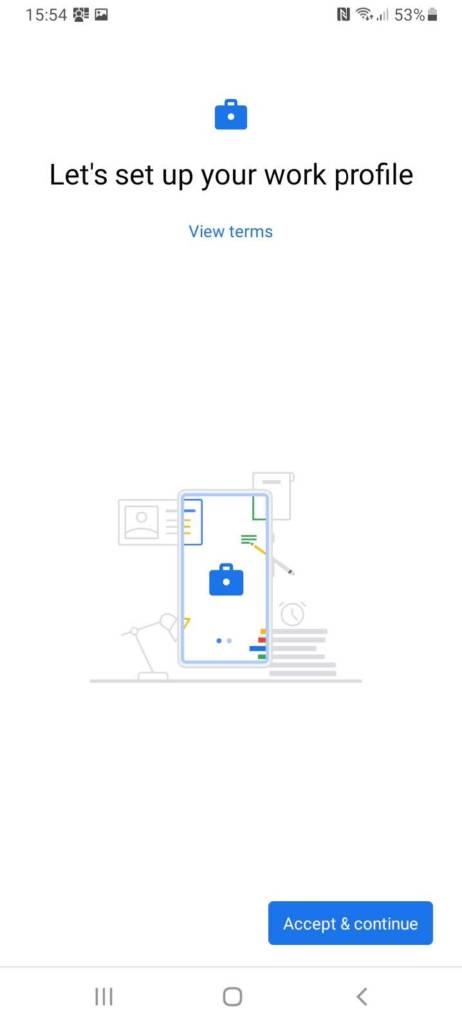
- The screen will now display ‘Work apps are kept in your work profile’. Tap ‘Next’.
- You’ll see 1, 2 & 3 steps are needed to complete the process. Tap ‘CONTINUE’.
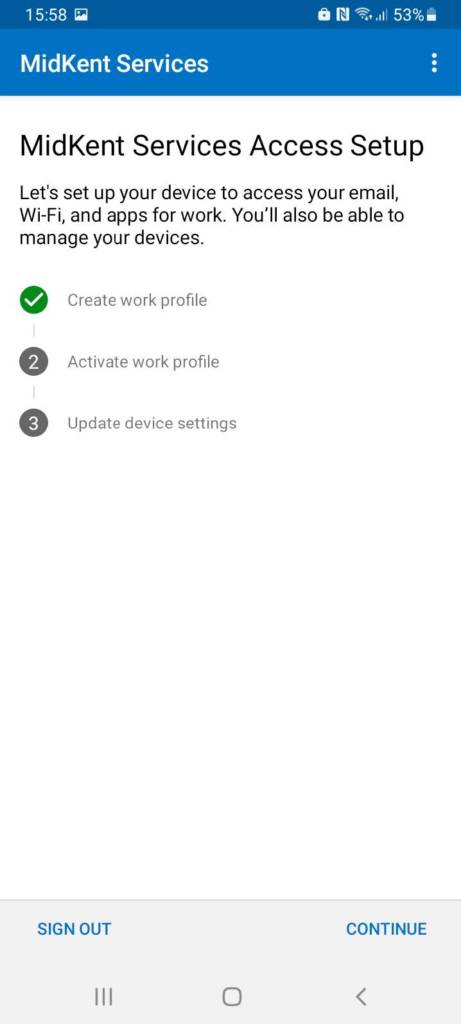
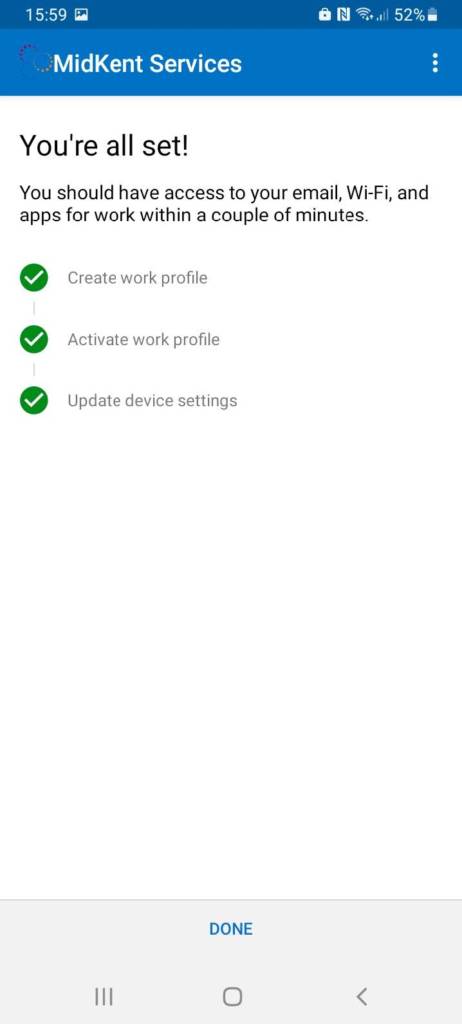
- Tap ‘DONE’.
- Tap ‘GOT IT’.
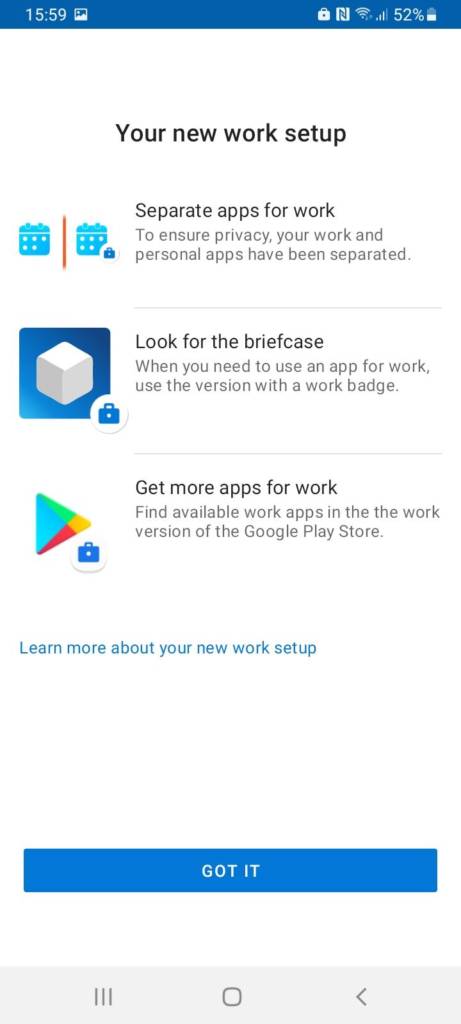
- Once you see this screen you can then go back to your devices apps list to see the work profile loading in.
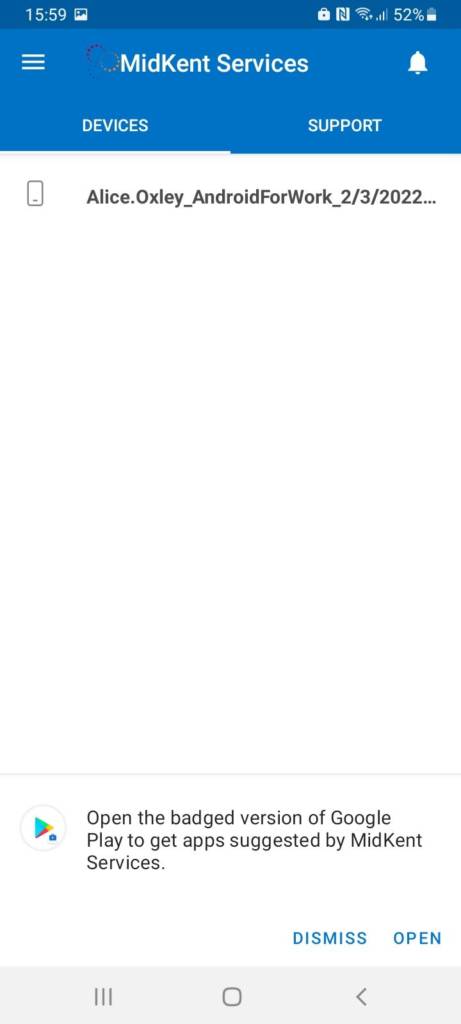
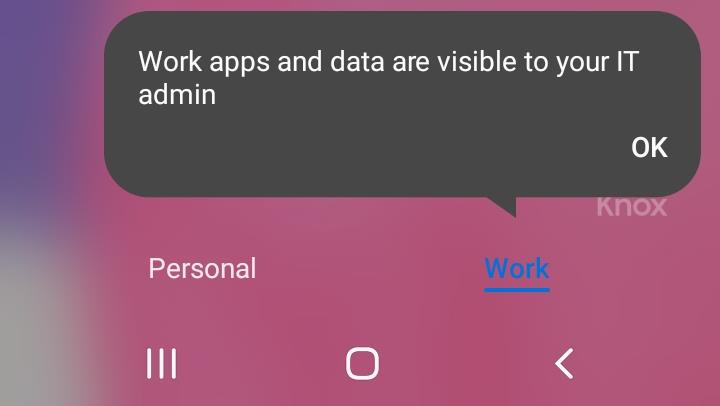
- Here you can see the ‘App drawer’ has been loaded onto the device. You can see here that there are separate ‘Personal’ and ‘Work’ tabs showing the app division.Please note it may take some time for the work apps to install. Once complete, you will then see the corporate apps available within the work app drawer.Personal app drawer:
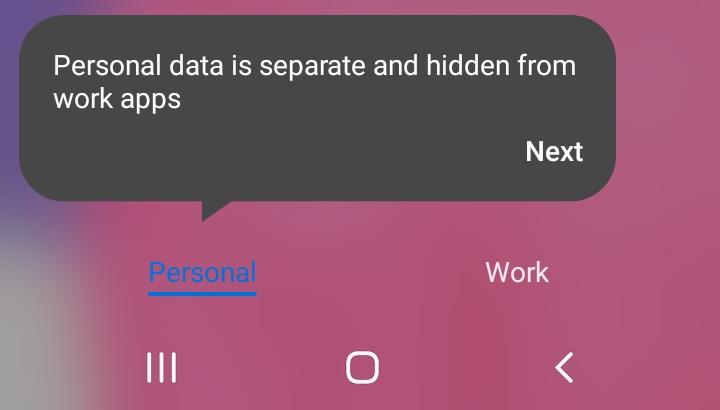
Work app drawer:
Here’s what you’d typically expect to see within the work app drawer:
Using emails with the Outlook Mobile app (in work profile)
- Open the Outlook app (with the briefcase icon) and tap ‘ADD ACCOUNT’.
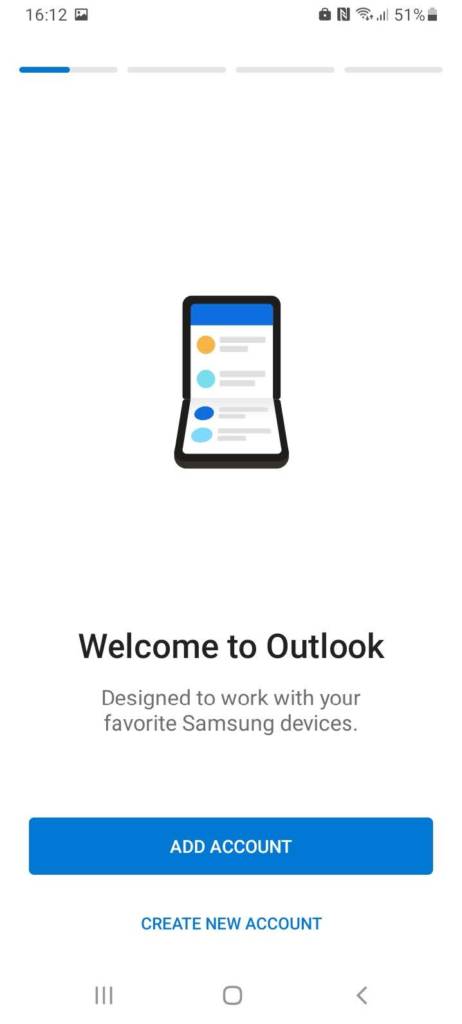
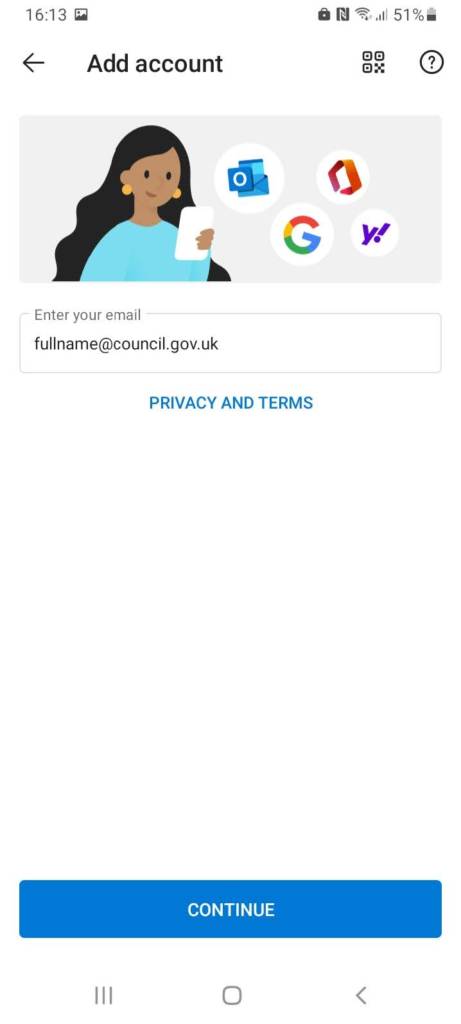
- Type in your council email address and tap ‘CONTINUE’.
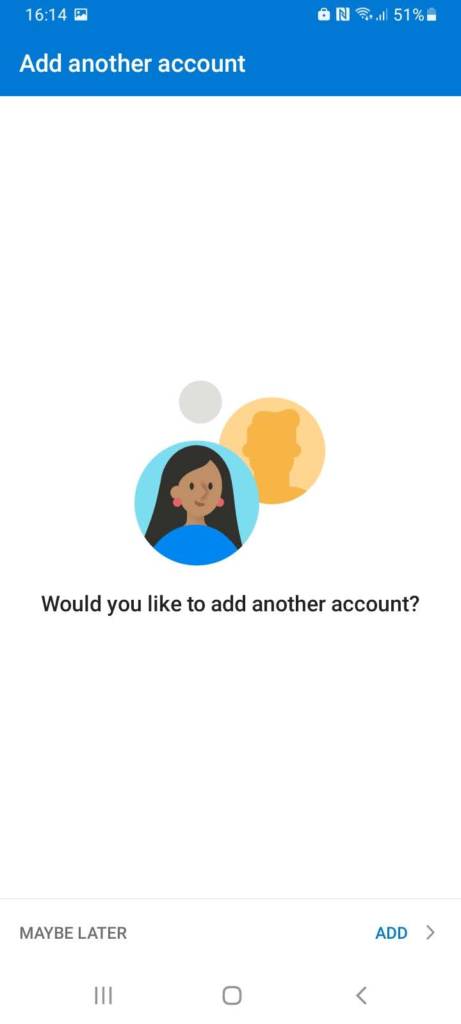
- On this screen tap ‘MAYBE LATER’.
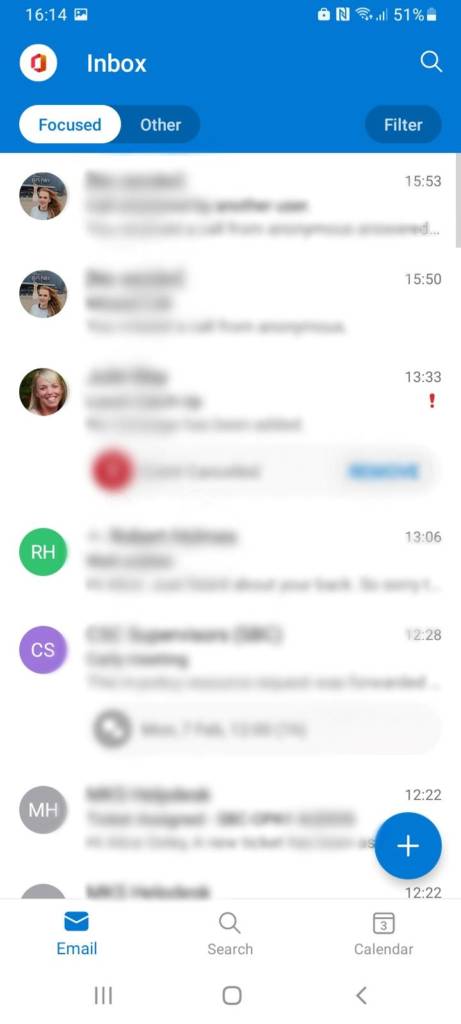
- Your work emails will have now loaded in and have completed successfully.
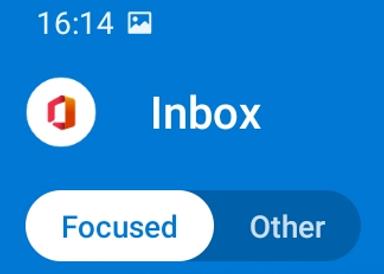
Removing ‘Focused/Other’ Outlook view
Outlook has introduced a new ‘Focused/Other’ view that splits your emails into a way that they determine is useful at an estimated level of importance. This can be useful or frustrating depending on how you like to use Outlook. This section describes how to turn the feature on or off.
To turn off this feature, tap the picture with the Office logo in the top left corner:
Then tap the settings symbol in the bottom corner:
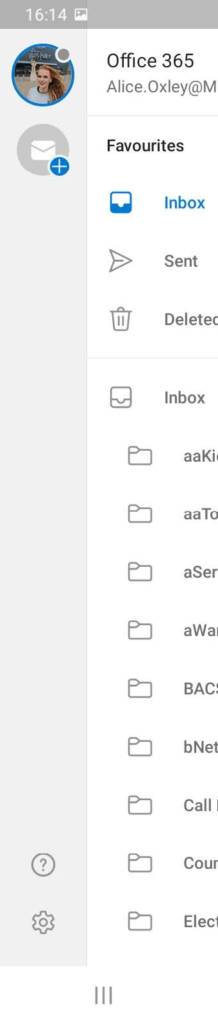
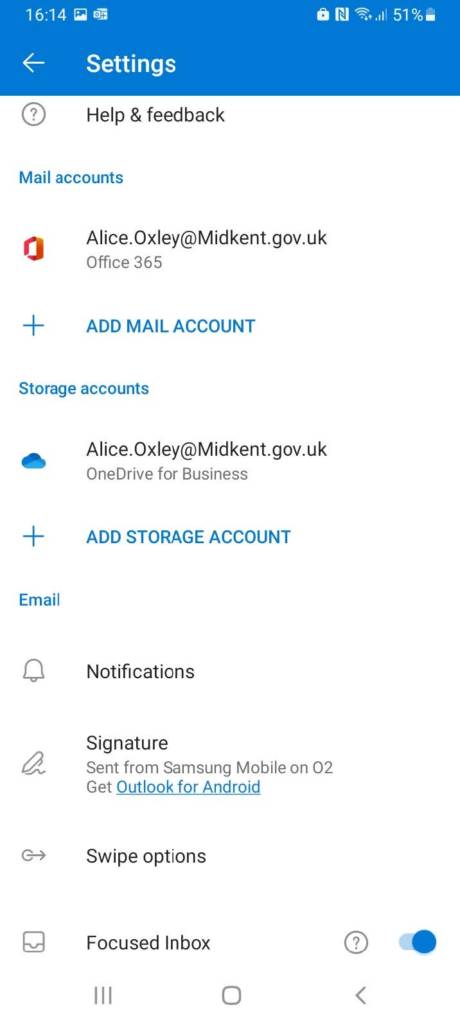
Then tap the toggle on the ‘Focused Inbox’ option. This will turn off or on the feature and you will be ready to return to your inbox.