On the homepage, there is a widget that enables the members to see the next meeting without any further clicks.
The widget displays the title of the meeting, its status, the attendancy (providing members have cancelled via this portal, or informed the Democratic Services team), as well as the location (Council Chambers or Online) and the date and time.
Below the widget there are also quick access buttons to take you to the Calendar of Meetings (‘all meetings’) or to the list of meetings that you have been assigned to (‘my meetings’).
You can view the calendar of meetings in either ‘Calendar view’ or ‘List view’ by choosing the relevant tab at the top left of the page. The default is calendar view:
The classic view where events are being displayed as in a wall calendar.
You can navigate through the various months by using the left and right arrows o beside the month display:

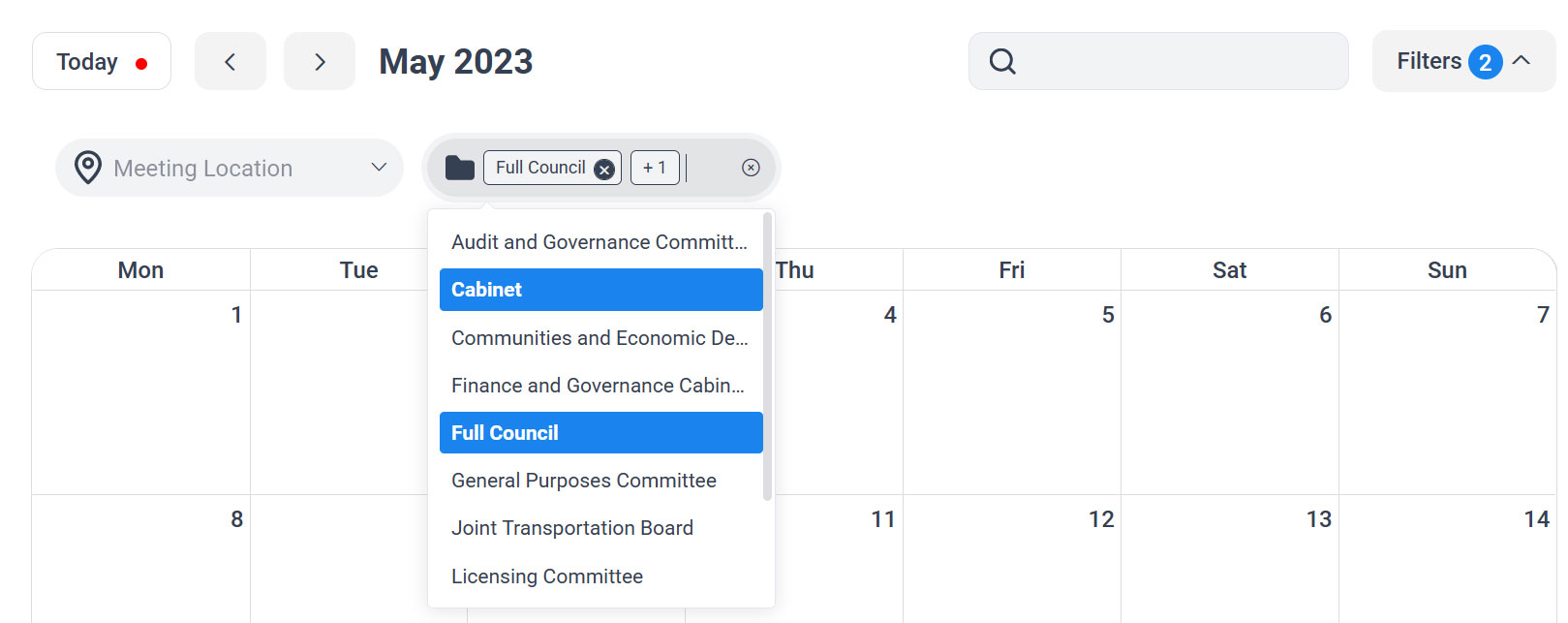
Clicking on the ‘Filters’ button will reveal the location selector which you can use to see meetings only at the selected location (for example ‘Online’) and the ‘Meeting Type’ selector which you can use to see only one the selected type of meetings (for example ‘Cabinet’, ‘Full Council’ etc). You can select multiple meeting types.
To clear the filters that you may have selected, you can either clear them one by one by clicking anywhere on the filter area and then deselect the ones you wish by clicking on them again, or hover over the small arrow on the right of the filter area until it becomes an ‘x’. Clicking on that will clear all filters at once:
Clicking on a meeting in the calendar view will open a pop-up with more details about the meeting:
- Status (On schedule, closed (for past meetings), Cancelled etc )
- Date
- Location (Council Chambers, Online)
- View details (hyperlinks to the meeting’s page in the democracy.tunbridgewells.gov.uk site, where agendas and all other relevant details can be found)
- Start time
- Any other important comms.
All meetings are in list view. Clicking on a meeting’s ‘Read more’ button will reveal further details.
The filters are always in view and in this instance only one meeting type is selectable at one time in the ‘Meeting type’ filter. The date selector is used to start the list from the selected date onwards.
The list displays 12 meetings and you can progress through the list using the pagination at the bottom of the page.
In this page you can view a list of all the meetings you have been assigned to attend.
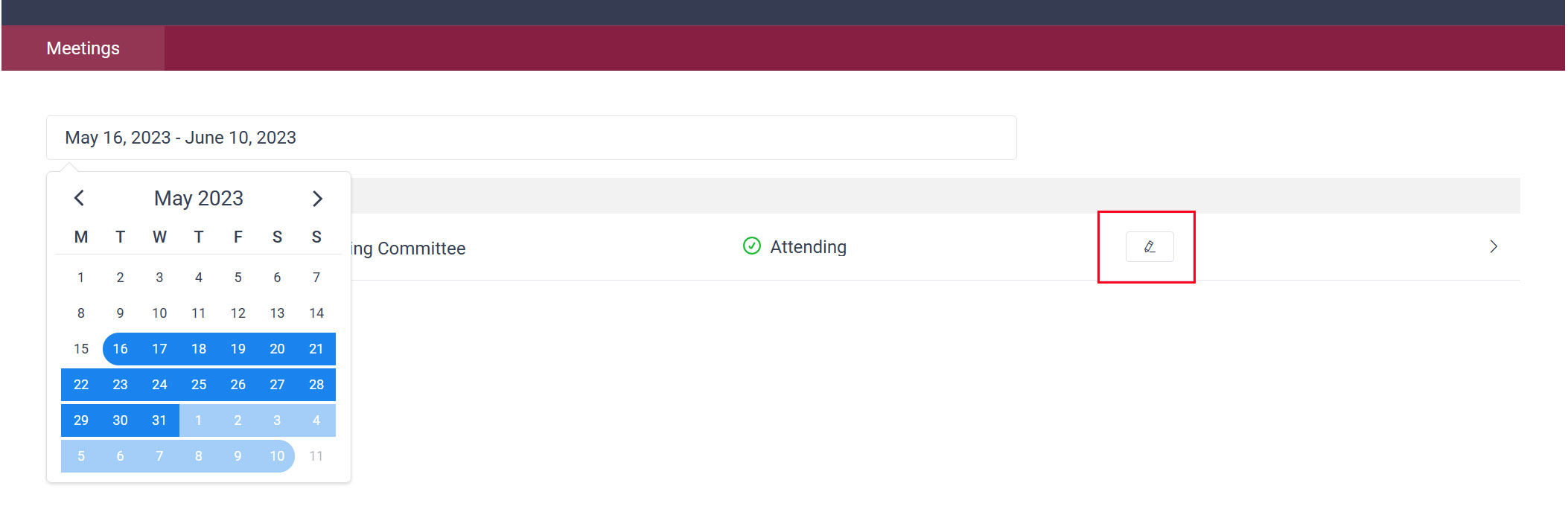
You can use the date selector to view a specific time range.
In each meeting’s panel you can see your attending status, a cancel icon and a location icon. The location icon opens a panel with the location, which is very useful in the case of a possible Online meeting (Teams, Zoom etc), as the location name will be hyperlinked with the ‘Join the meeting’ URL.
You can use the cancel function to cancel your attendance. This will:
- update your status for that meeting to ‘Cancelled’
- update the attendance number for that meeting
- send the Democratic Services team an email, informing them that you are unable to attend
- send you an email, confirming of the cancellation
If the cancellation was made by mistake, or if circumstances change please inform the Democratic Services team so your attendance can be re-instated.
If and when the status of a meeting changes (time, date, location, cancellation) the attendees of that meeting will receive an automated email informing them of the changes.
When an attendee cancels their attendance of a meeting, only they and the DS team will receive an email confirming the cancellation.
All attendees will receive a reminder the day before the meeting.